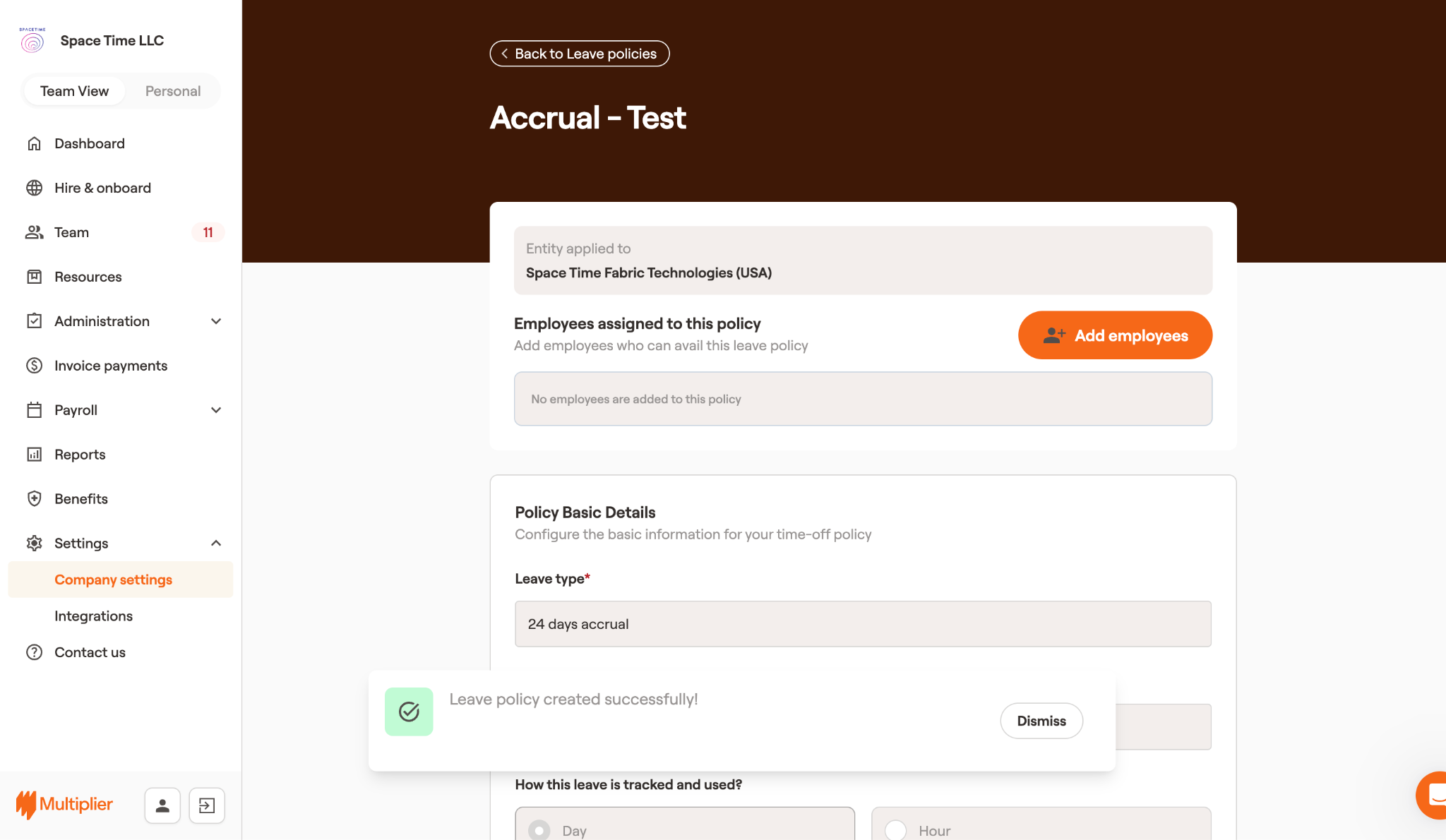
# Create a new leave accrual policy on Multiplier
1. Login to Multiplier using your credentials.
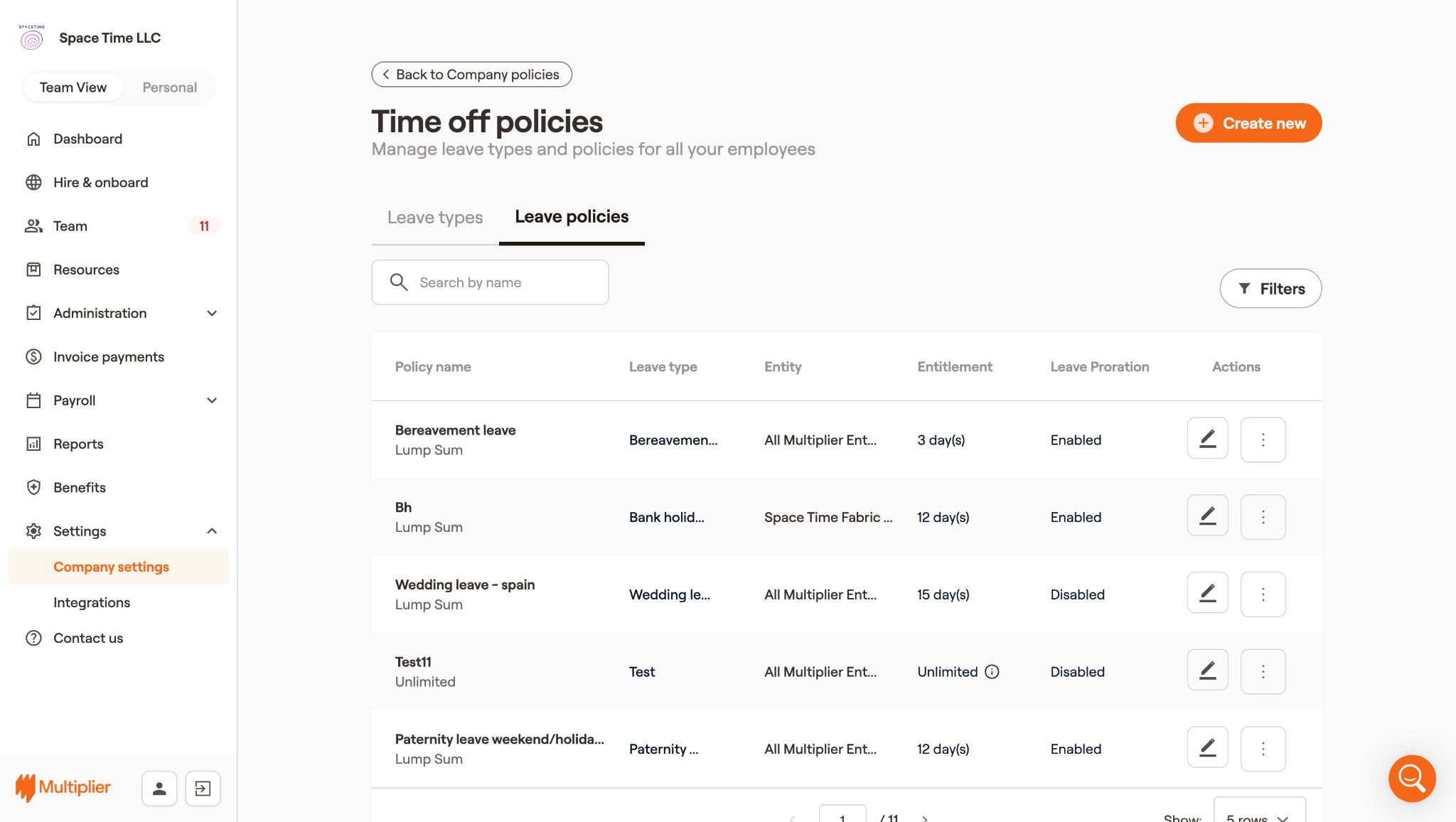
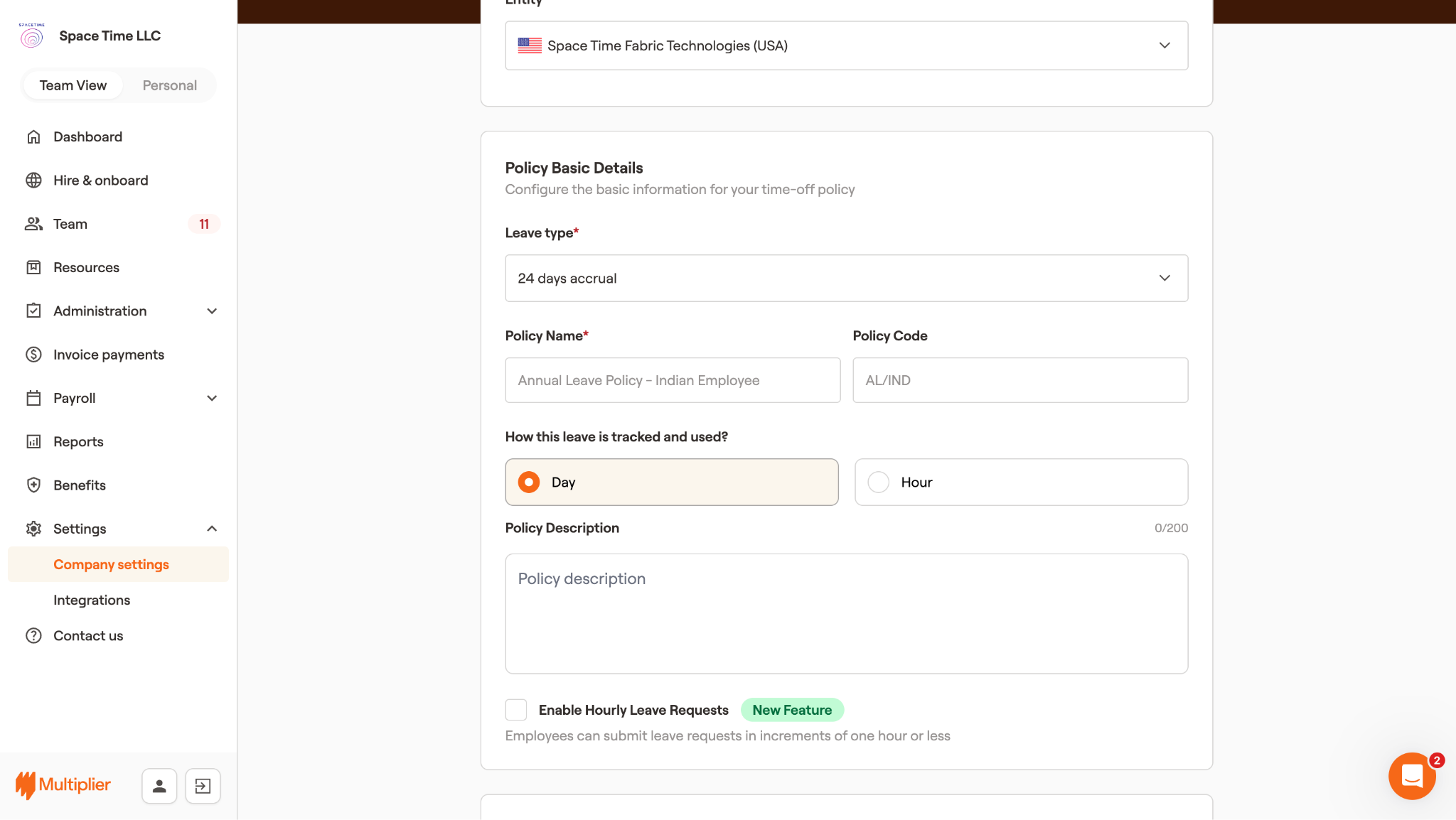
2. From the left sidebar, select **Settings** > **Company Settings**.
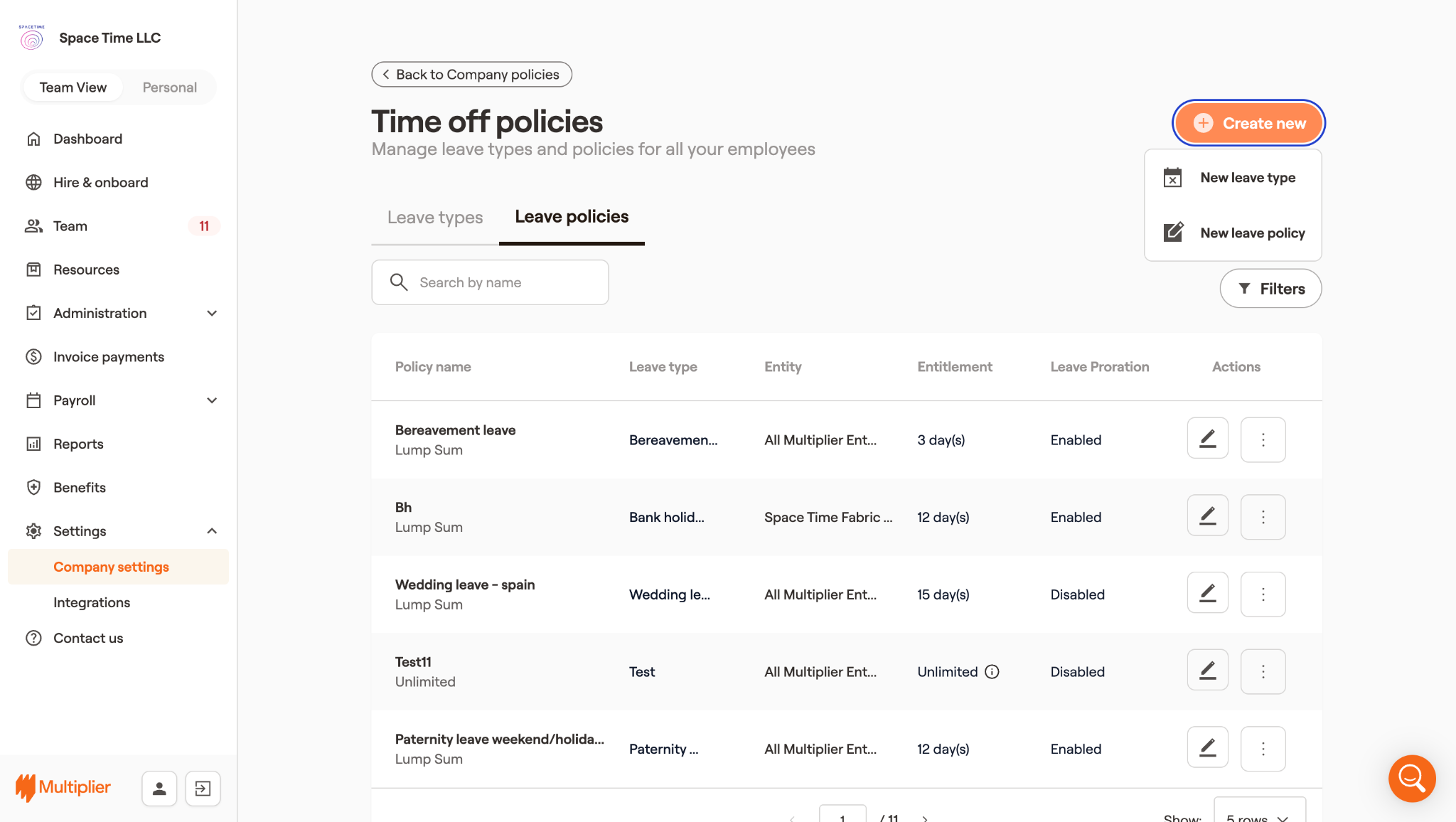
3. From the upper right, select **Create new** > **New Leave policy**.
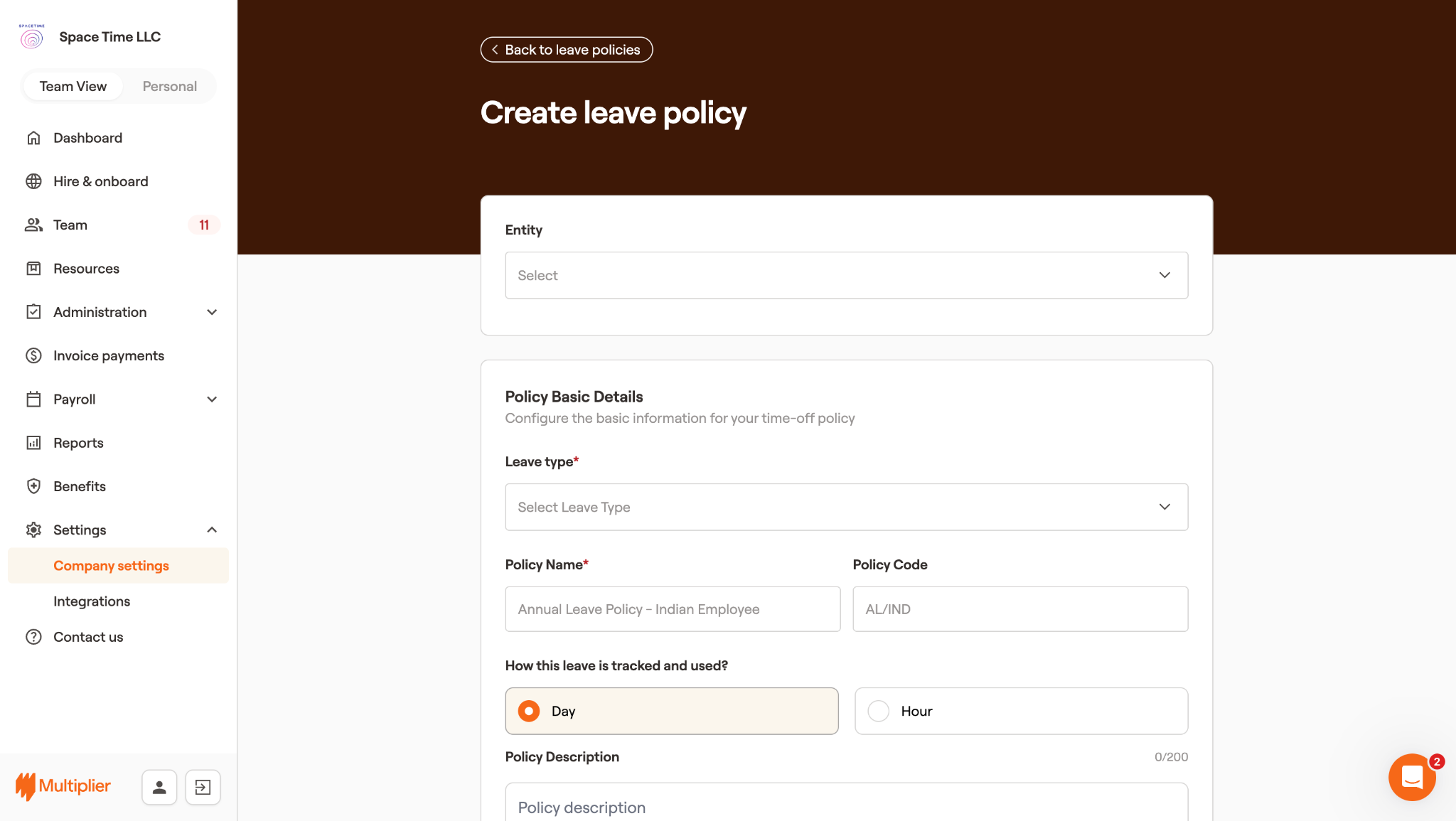
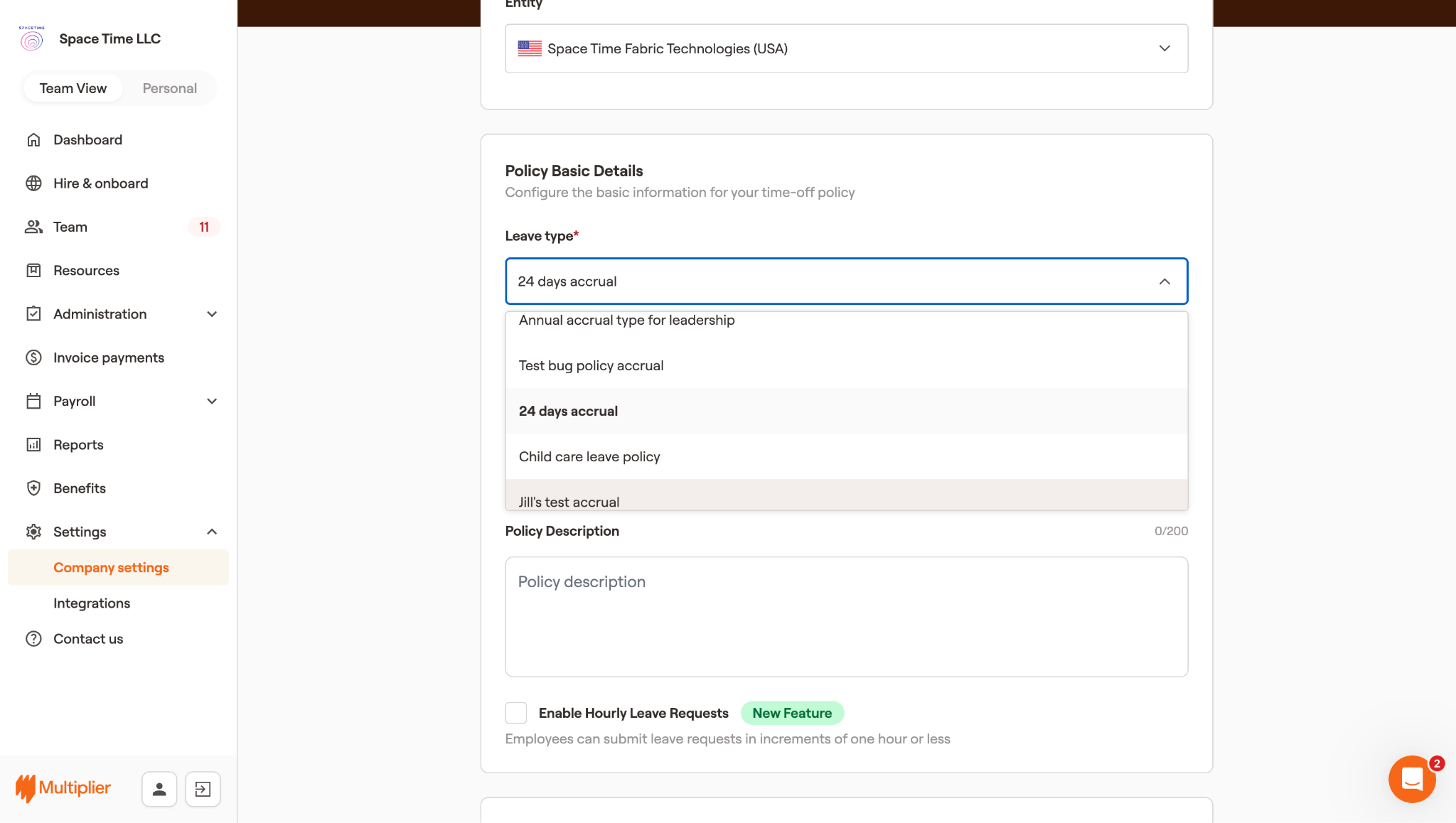
4. In the Create new policy window, use the Entity dropdown to select the entity for which you wish to create the leave policy.
5. Under Policy Basic details, use the Leave type dropdown to select any annual leave type.
**Note:** The accrual policy can only be created for the annual leave type.
6. Enter Policy Name and Policy Code.
7. For leave tracking and usage, you get two options:
* Day - If you select this option, you also get the option to Enable Hourly Leave requests by selecting the checkbox next to Enable Hourly Leave Requests.
* Hour - with this option, you can request leaves in increments of an hour.
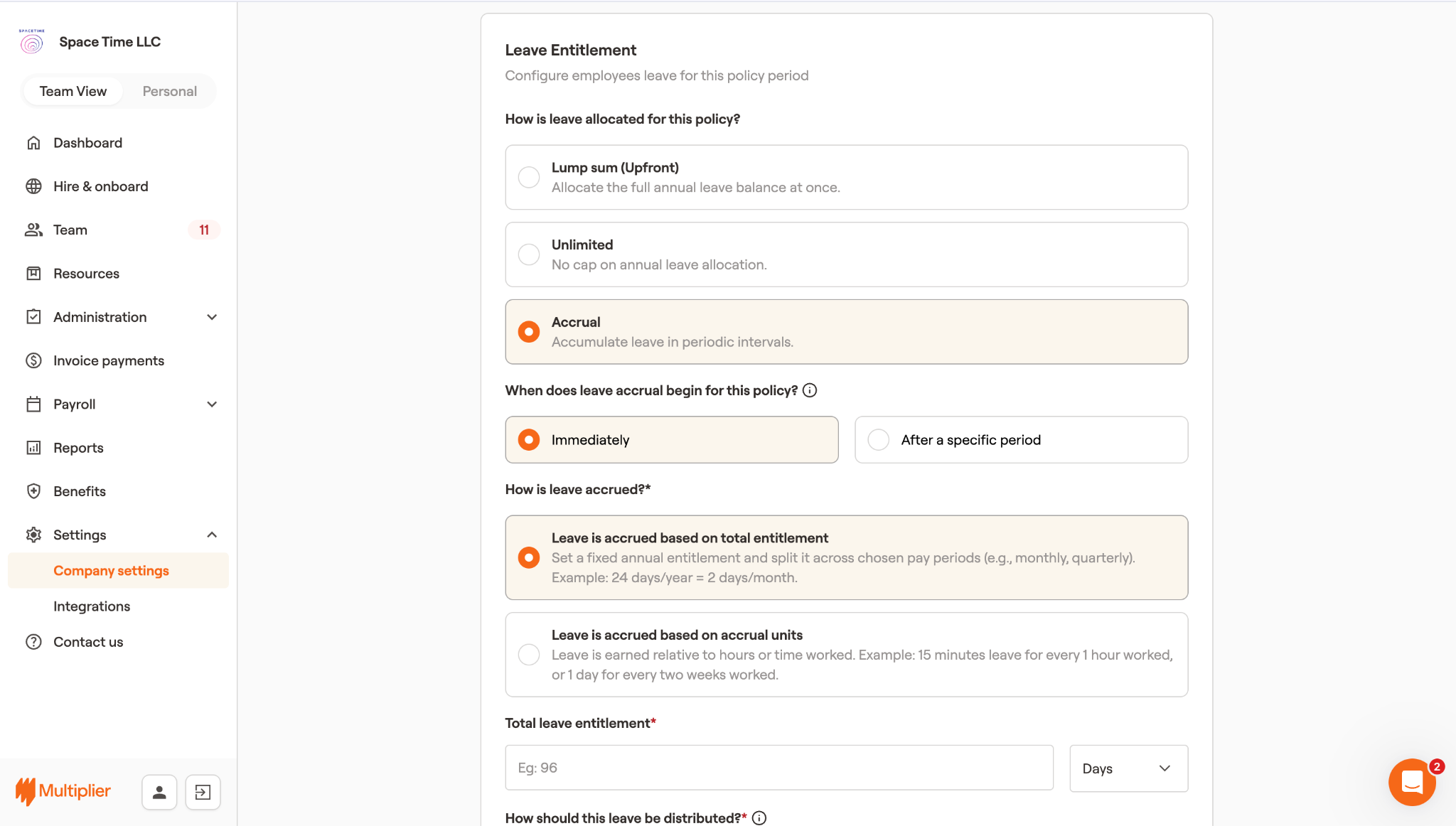
8. Under leave entitlement, select **Accrual**.
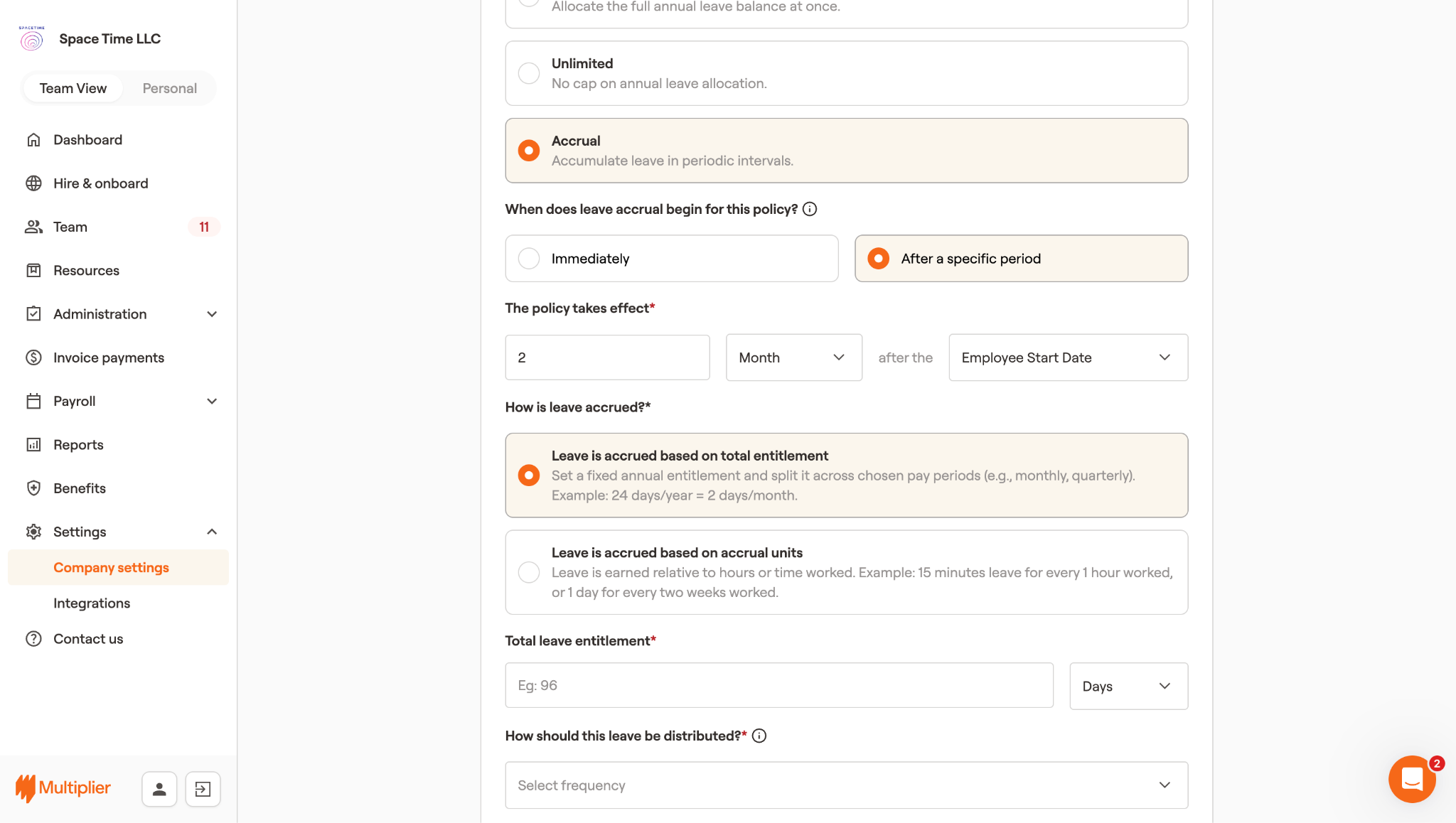
9. To set the beginning of leave accrual for this policy, you have two options:
* Immediately - Select this option if you want the leave accrual to begin for this policy immediately.
* After a specific period - Select this option if you want the leave accrual to begin after the period defined by you. After selecting this option, select the number of months/years after the employee’s start date from which you wish to begin the leave accrual.
10. For leave accrual, you have two options:
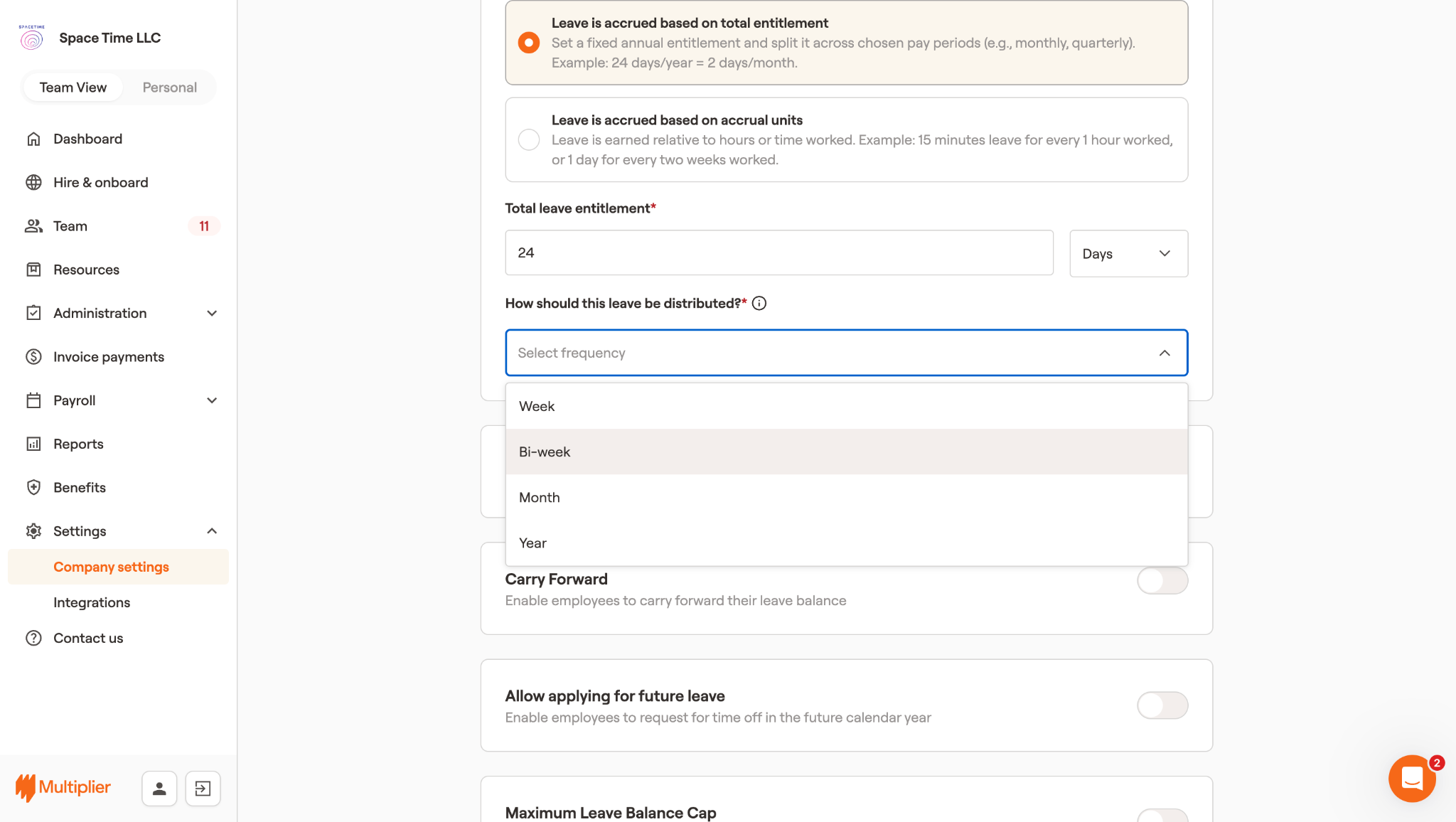
Leave is accrued based on total entitlement
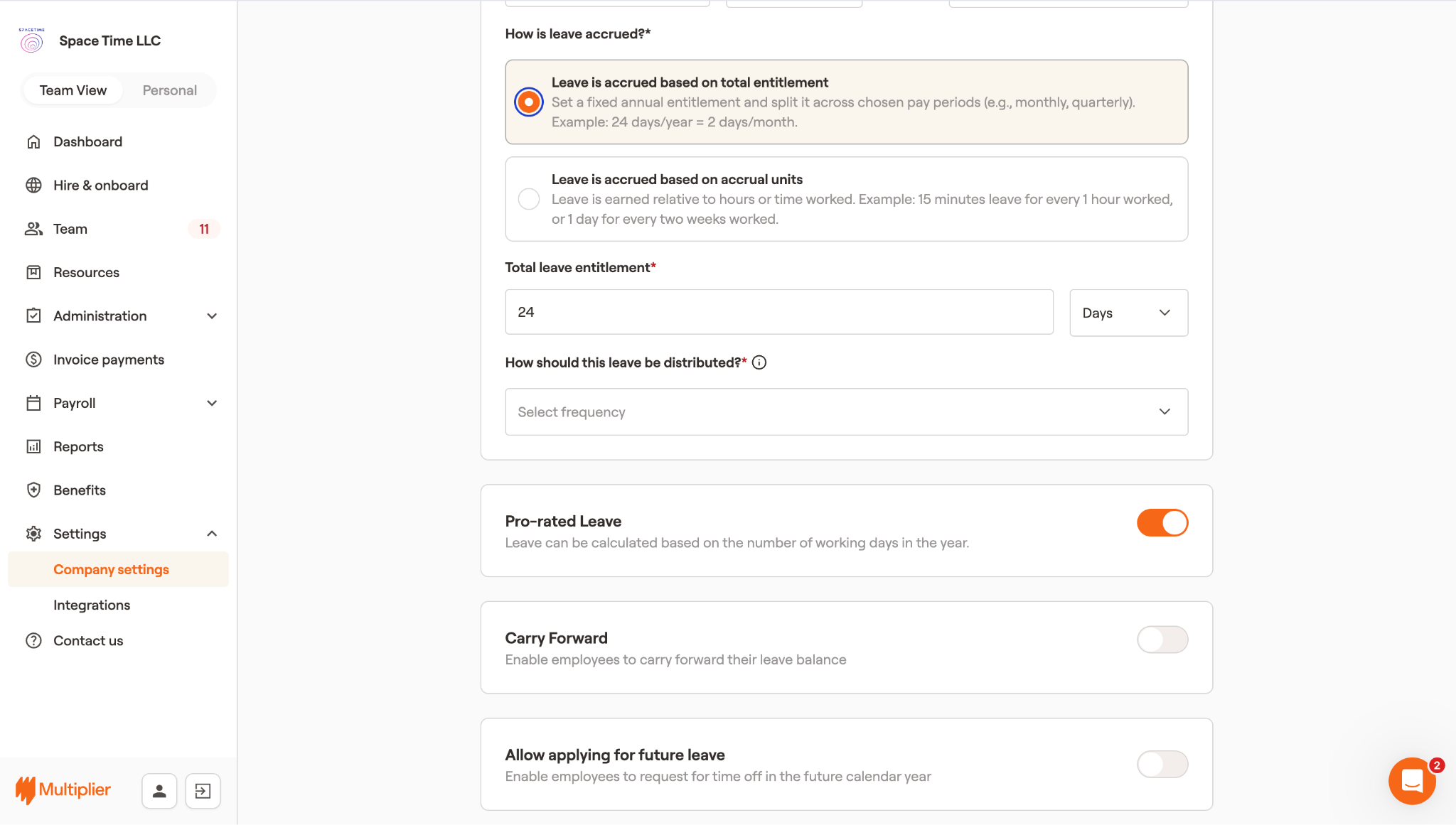
In this option, you set a fixed annual entitlement and split it across chosen pay periods (e.g., monthly, quarterly). Example: 24 days/year = 2 days/month. If you select this option:
1. Enter the Total leave entitlement.
2. Use the How should this leave be distributed dropdown to enter the leave distribution type. You get four Leave Accrual Frequency Options
* Week: Select a specific day of the week for the leave to be added.
* Bi-week: Select a specific day of the week for the leave to be added.
* Month: Select a specific day of the month for the leave to be added.
* Year: Select a specific day of the year for the leave to be added.
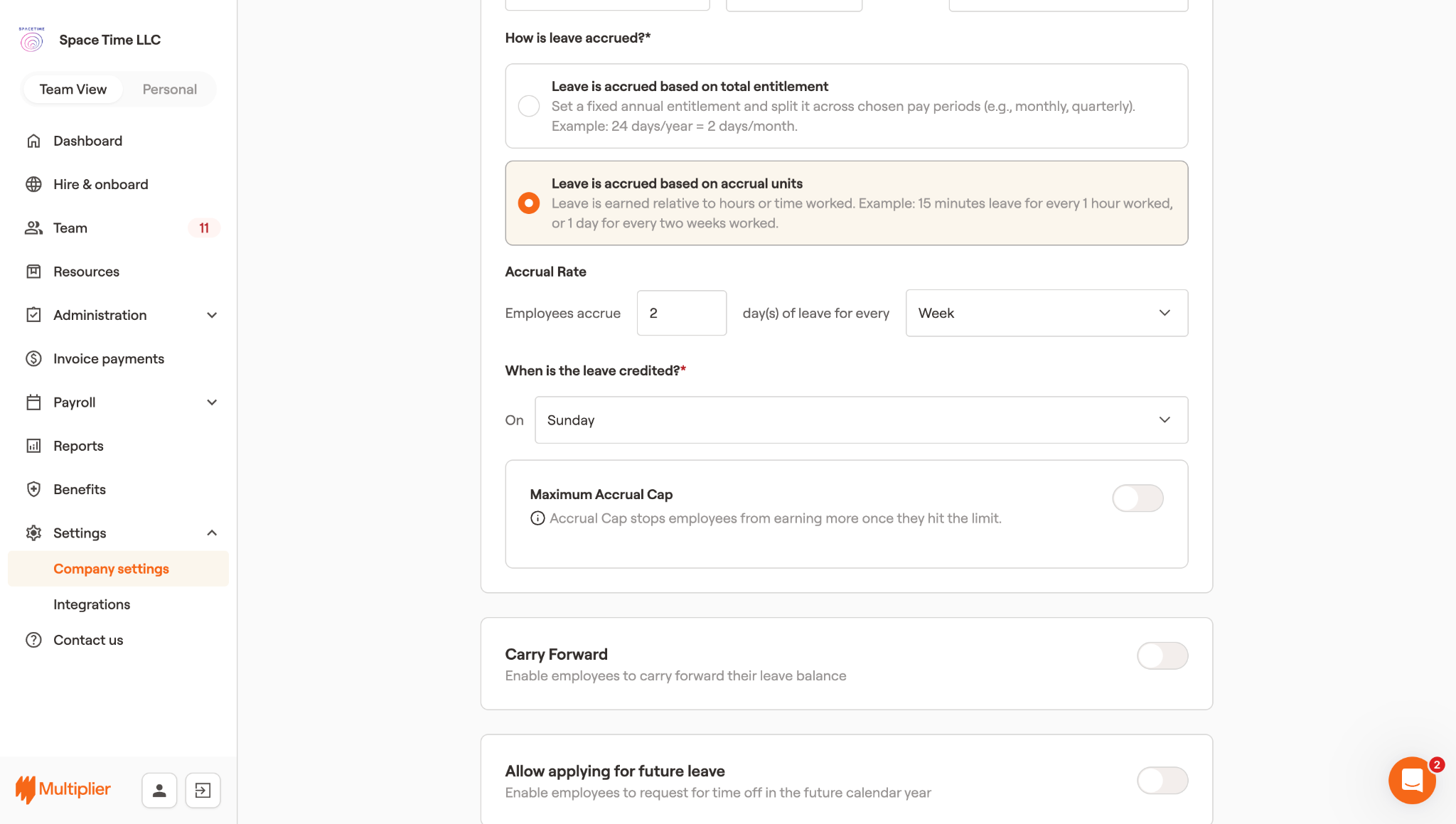
Leave is accrued based on accrual units
In this option, the employee earns leave relative to the hours or time worked. Example: 15 minutes leave is earned for every 1 hour worked, or 1 day leave is earned for every two weeks worked. If you select this option:
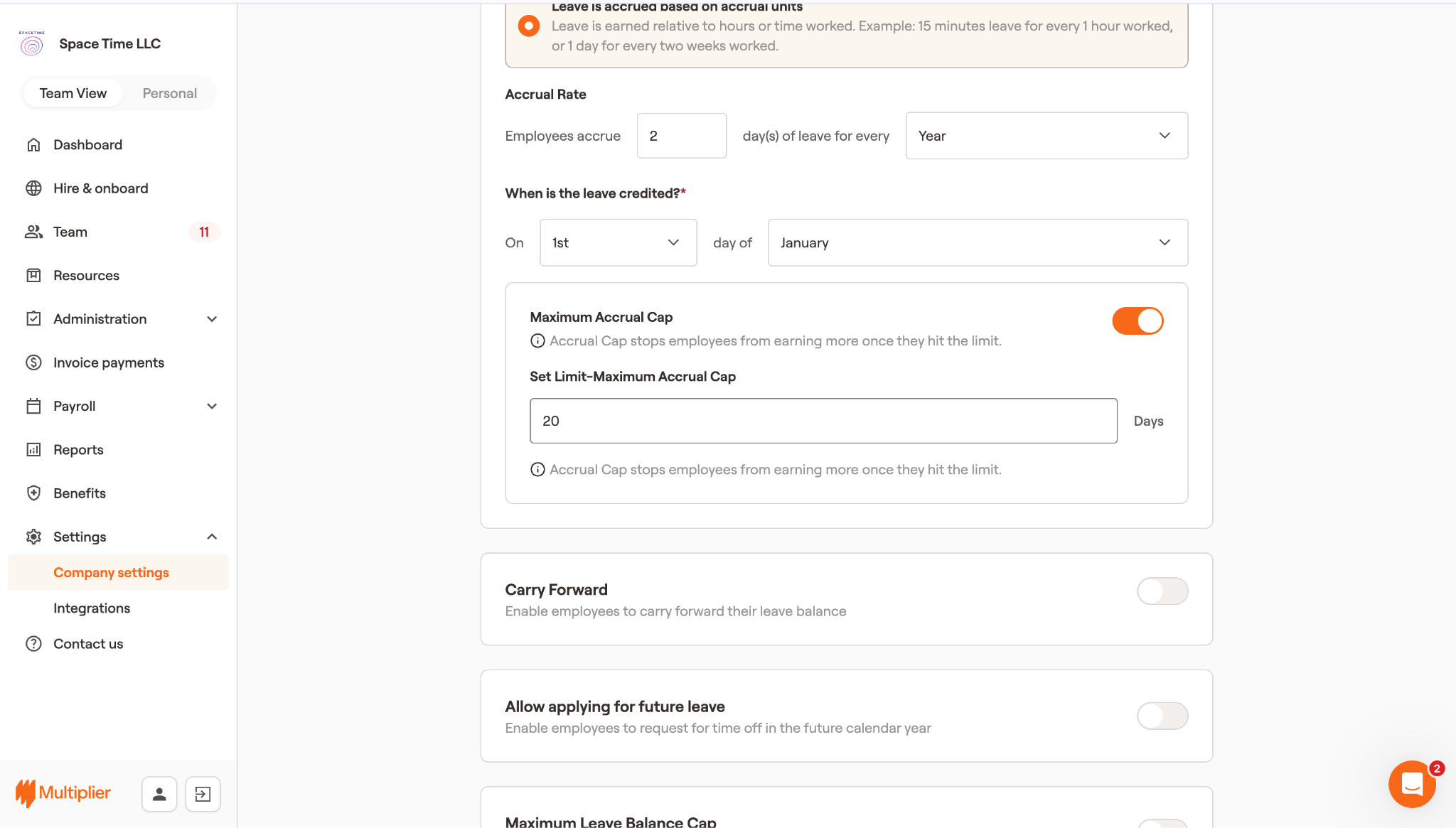
1. Enter the Accrual rate. Example 2 day(s) for every:
* Week: Select a specific day of the week for the leave to be added.
* Bi-week: Select a specific day of the week for the leave to be added.
* Month: Select a specific day of the month for the leave to be added.
* Year: Select a specific day of the year for the leave to be added.
2. Select on which day you wish the leave to be credited.
Note: You can enable the toggle for Maximum accrual cap if you want only a specific number of leaves to get accrued for an employee.
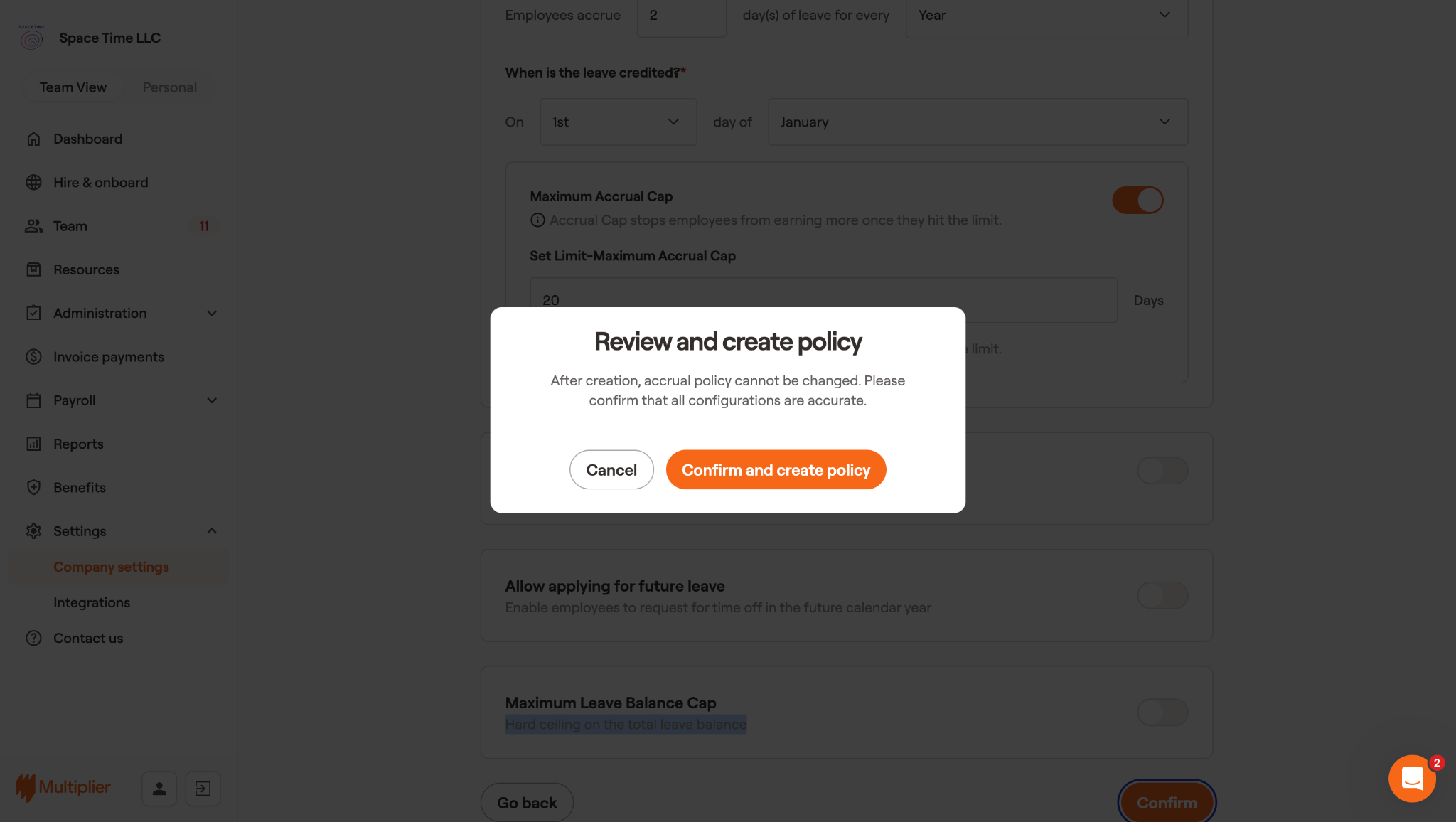
11\. Select **Confirm**.
12\. In the **Review and create policy** dialog box, select **Confirm and create policy**.
The leave policy has been created successfully.