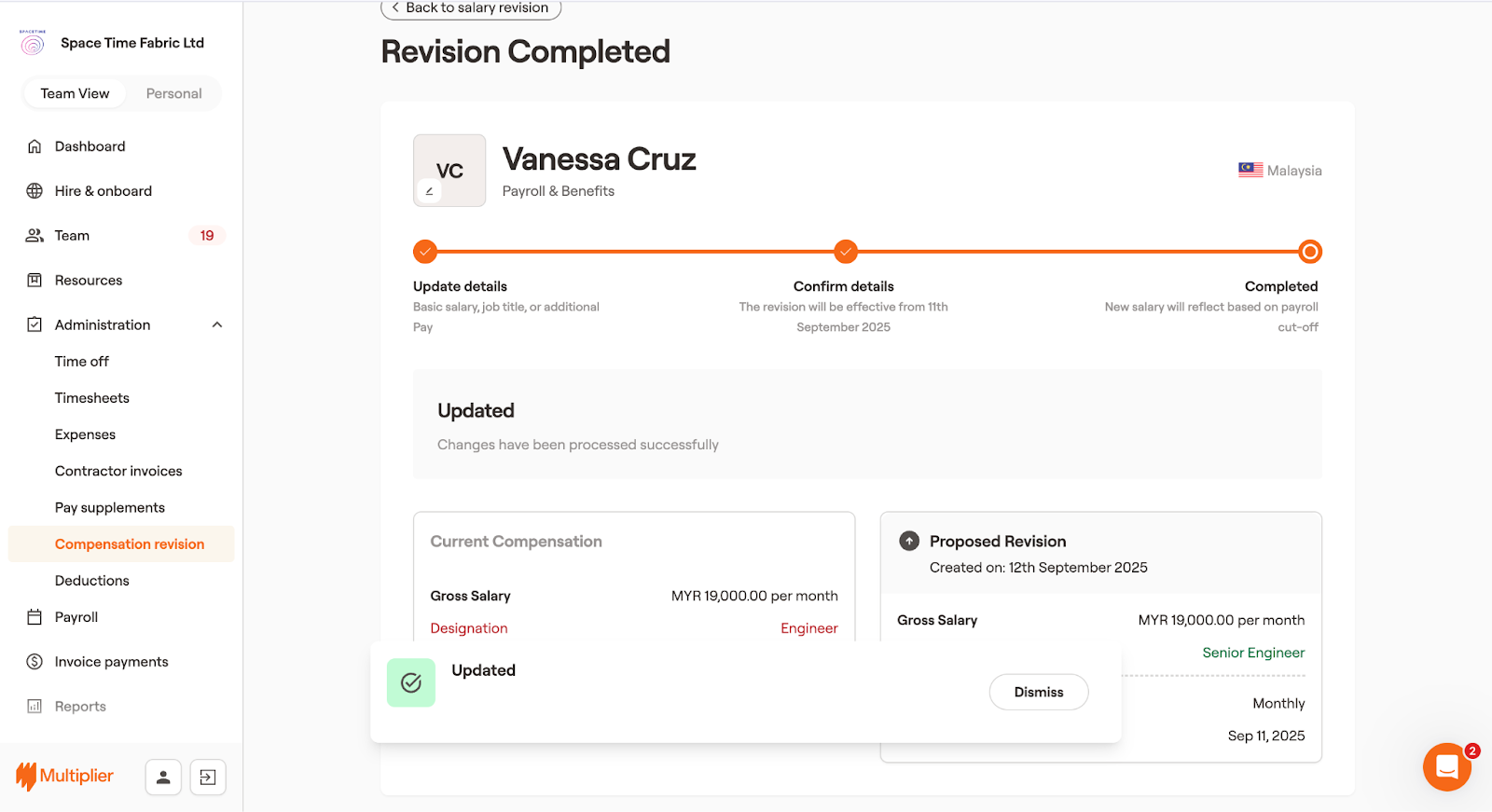
# Revise compensation and designation of GP employees
From time to time, you may need to change the designation, compensation, or both for global payroll employees. Learn how Multiplier helps you with this:
1. Log in to Multiplier using your credentials.
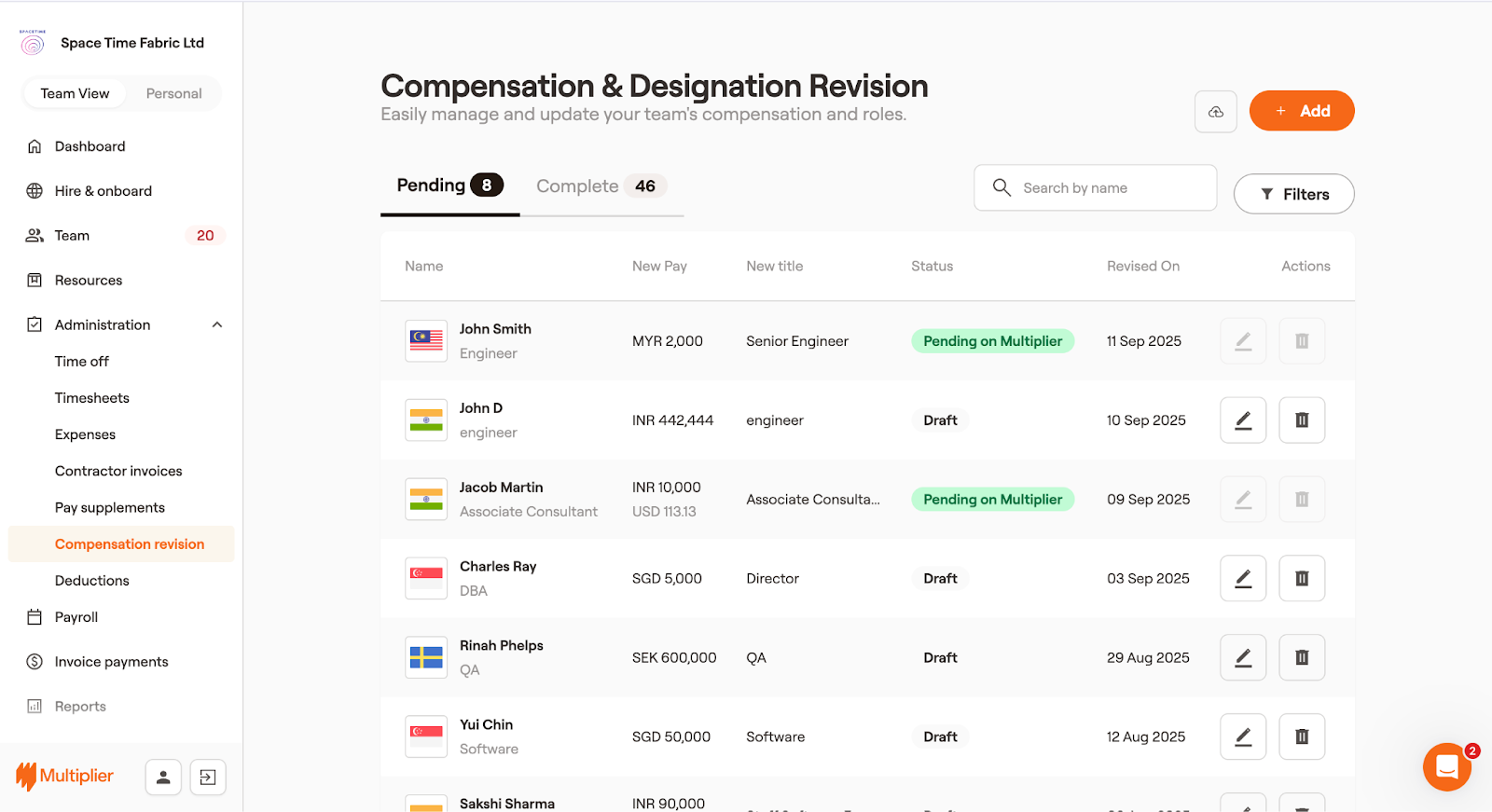
2. From the left sidebar, select **Administration** > **Compensation revision**.
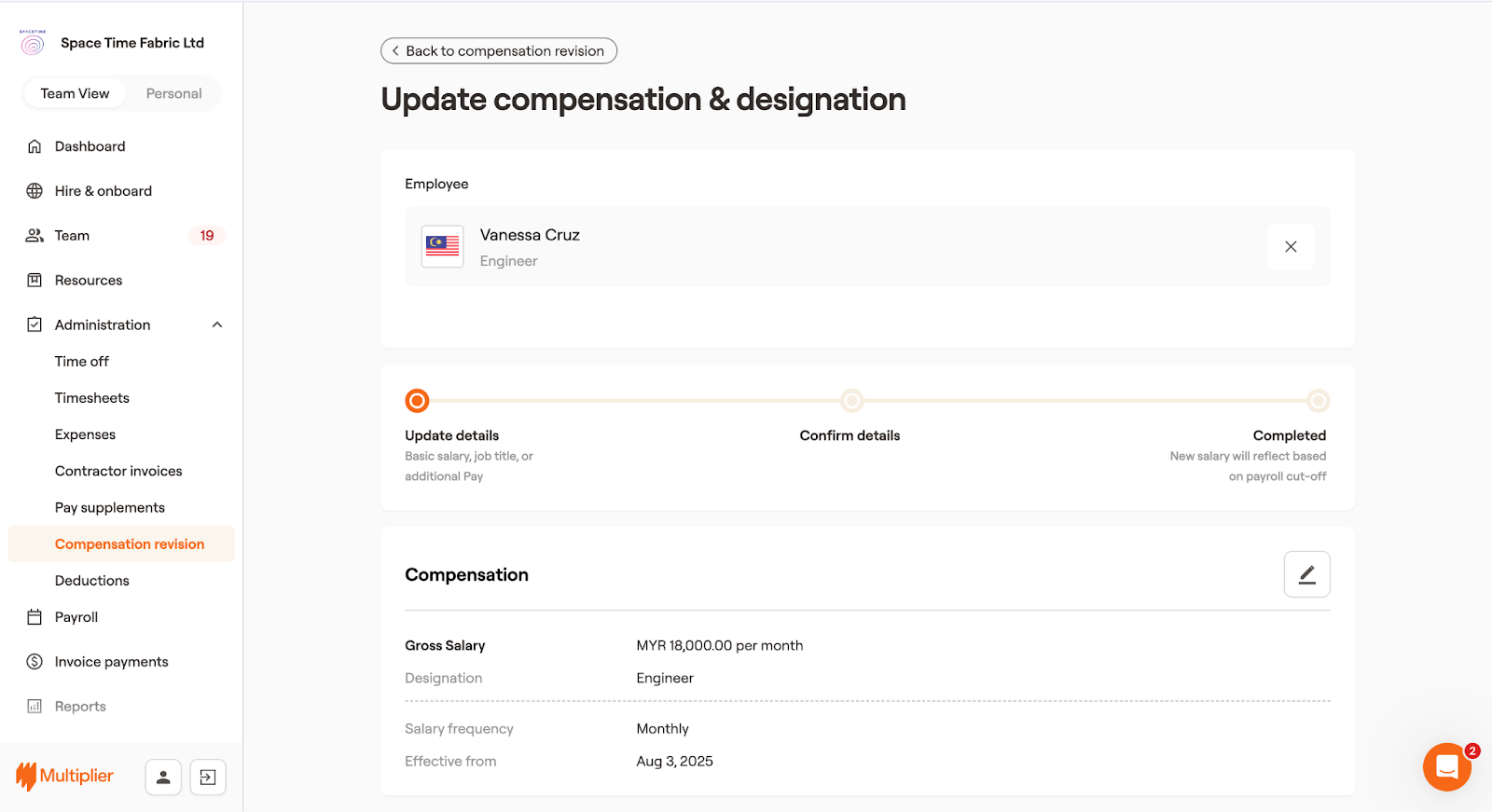
3. In the Compensation & Designation Revision screen, select **Add**.
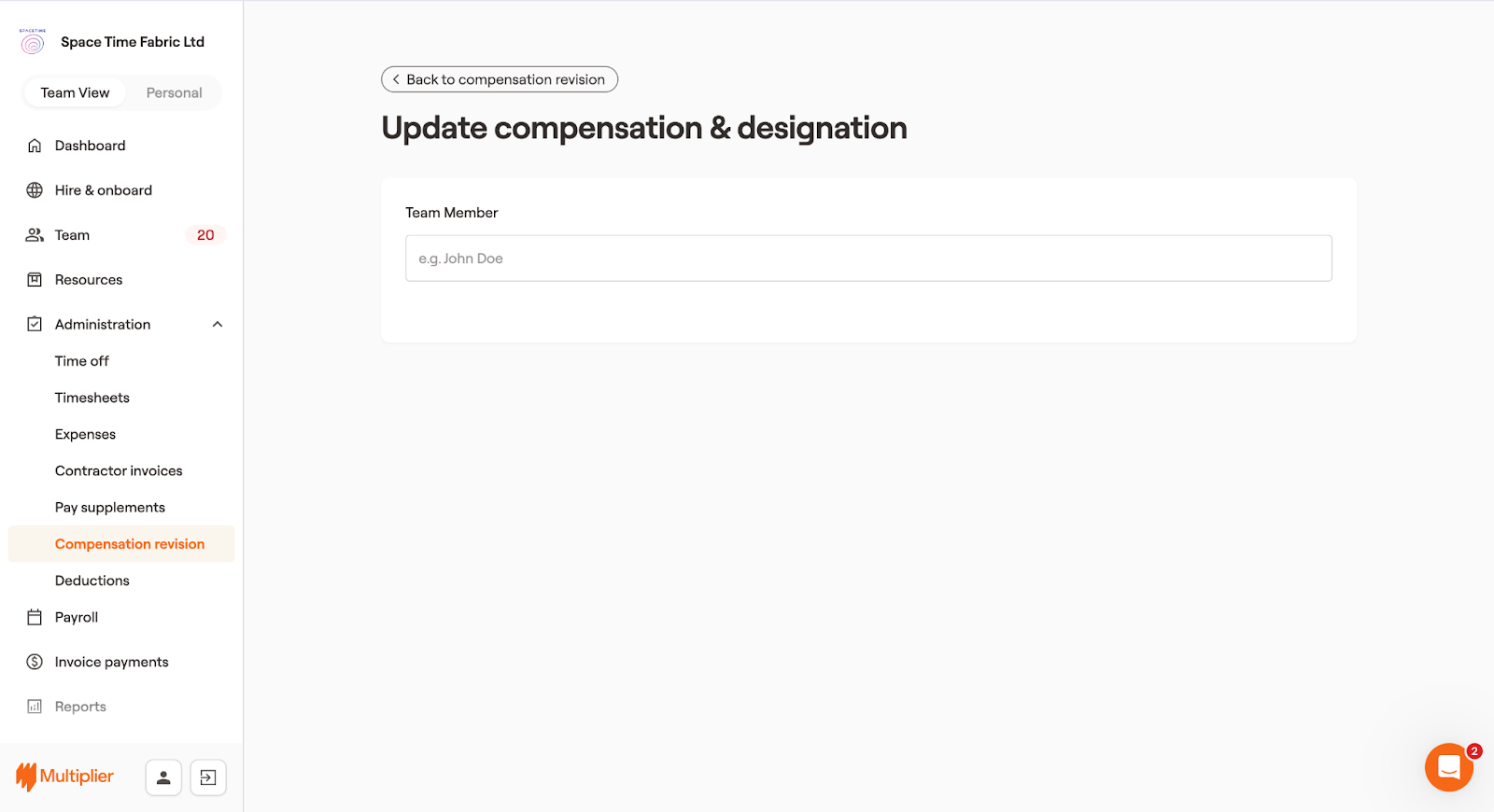
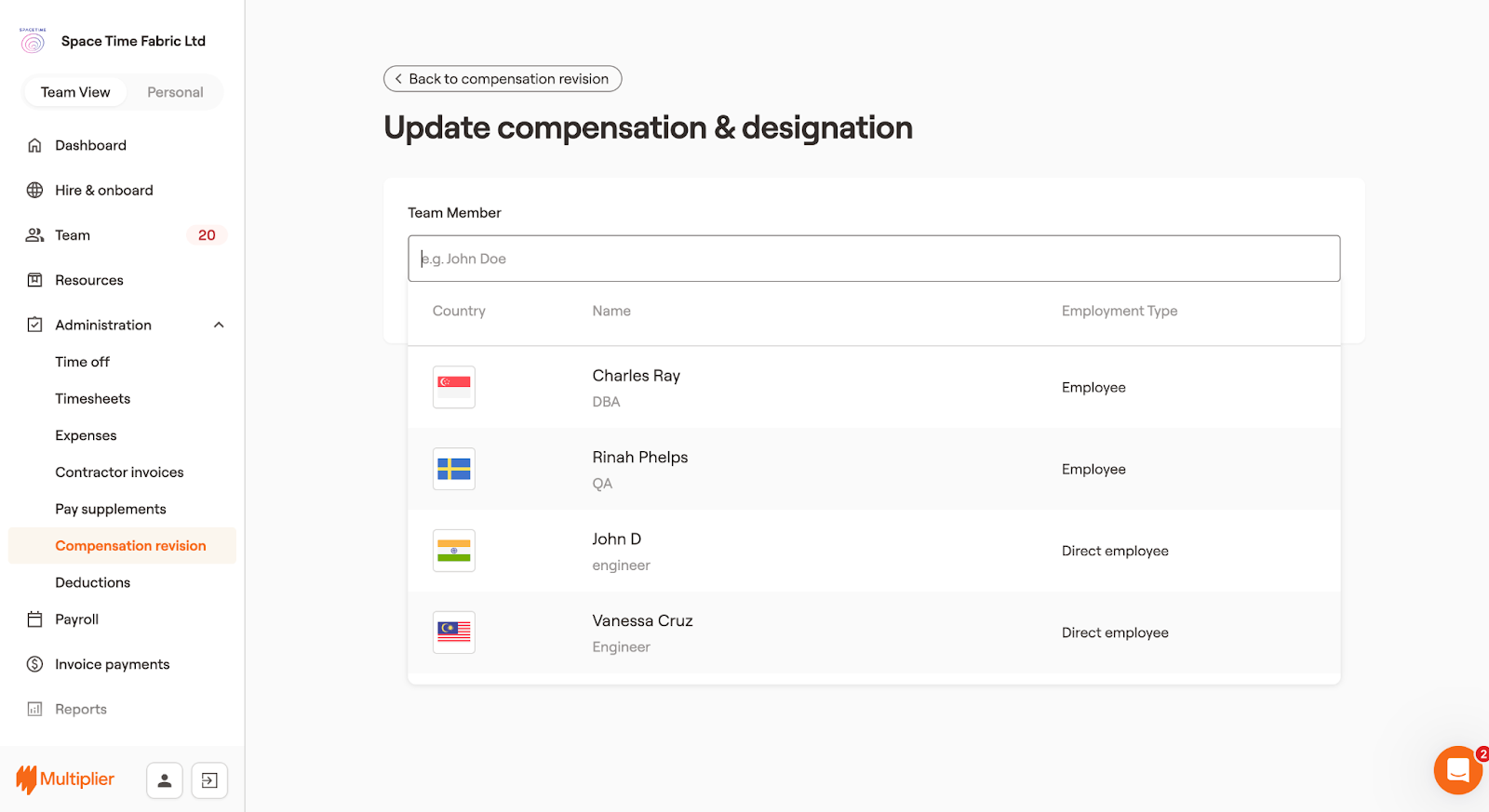
4. Use the drop-down under Team Member to select the team member for whom you wish to revise the compensation or designation.
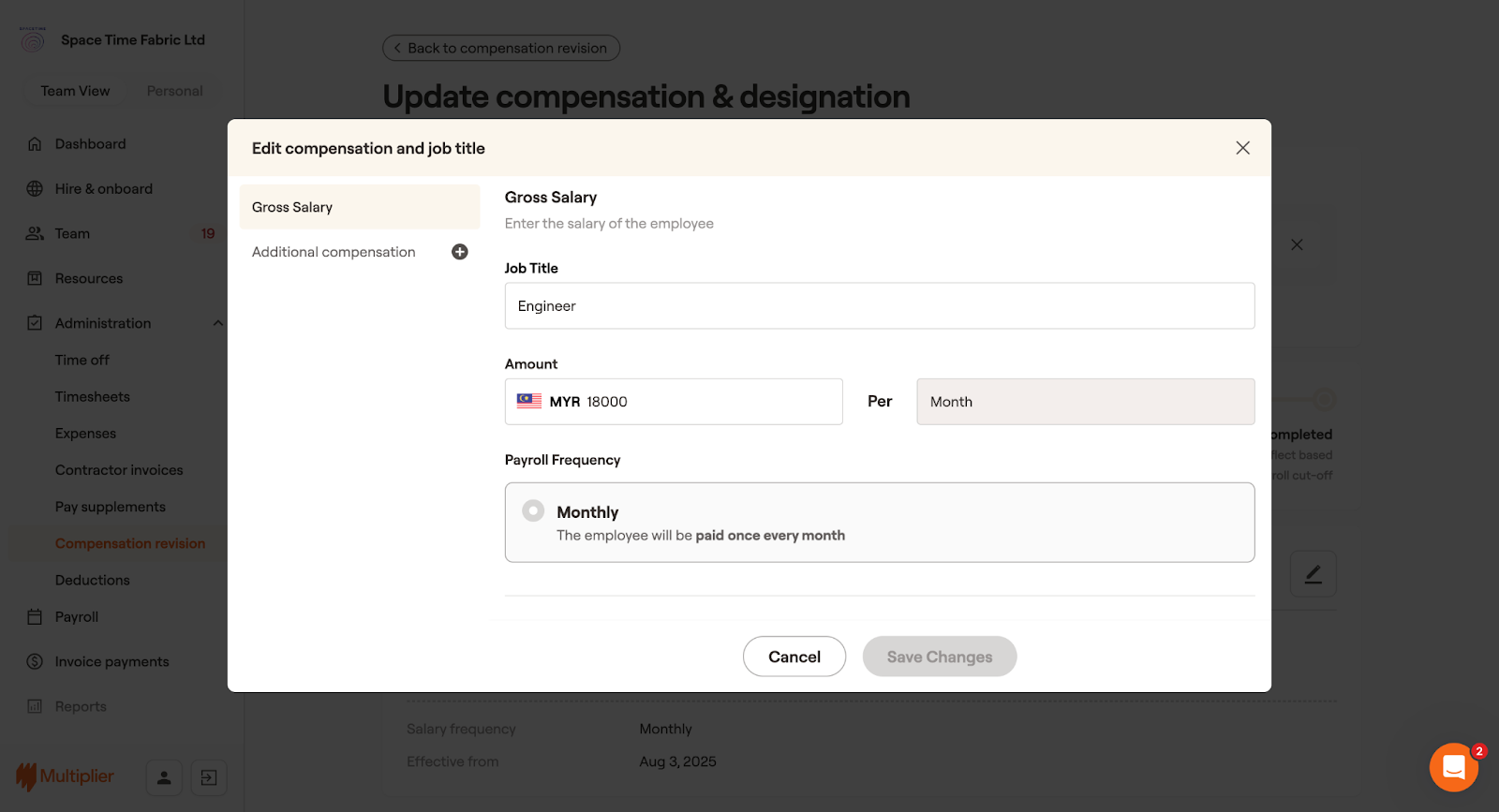
5. Select next to Compensation
6. **Revise Designation**: Enter the new designation under Job Title.
**Revise Compensation**: Enter the new compensation under Amount.
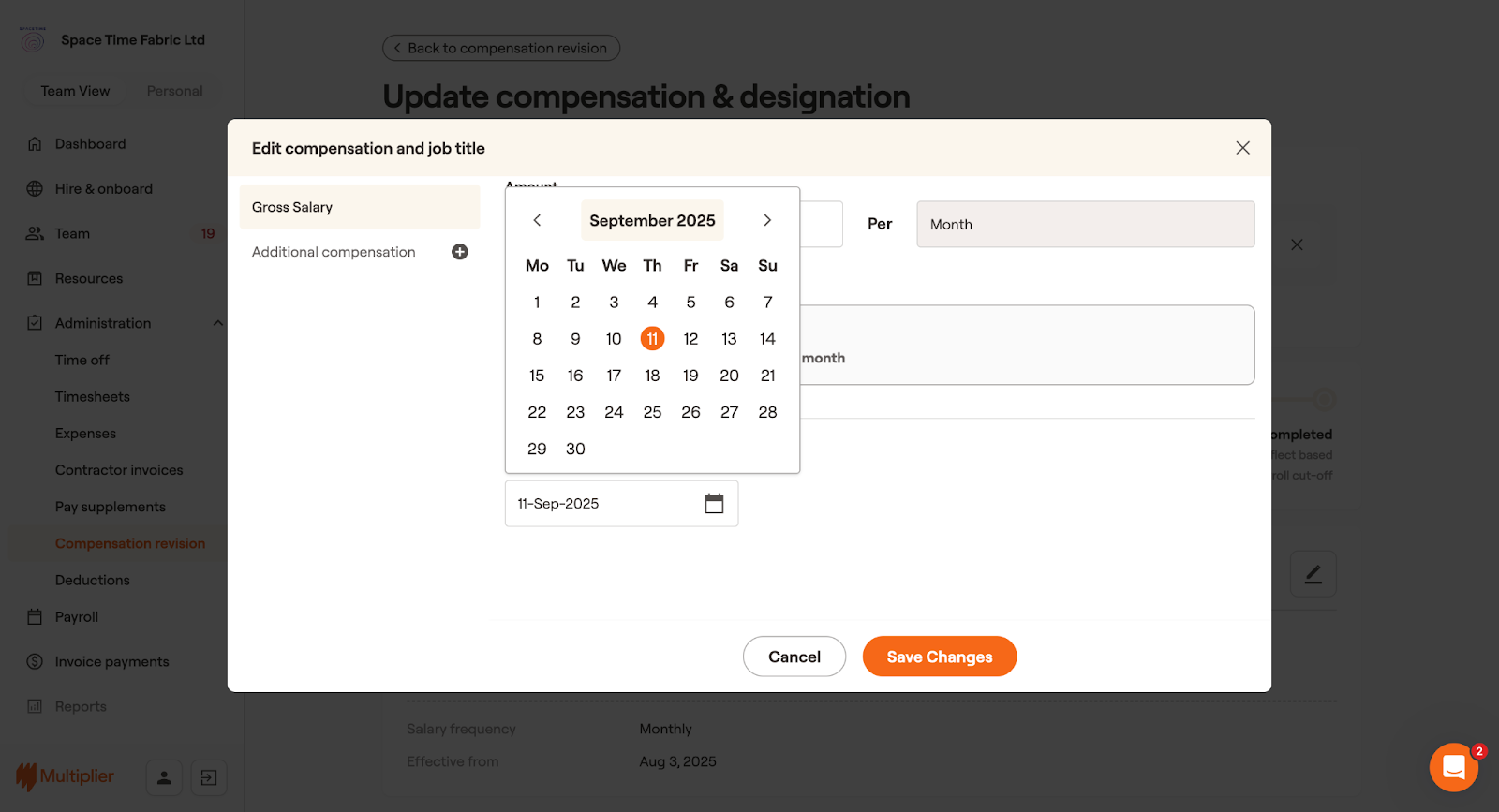
7. Scroll down and select the effective date of change, and then select **Save Changes**.
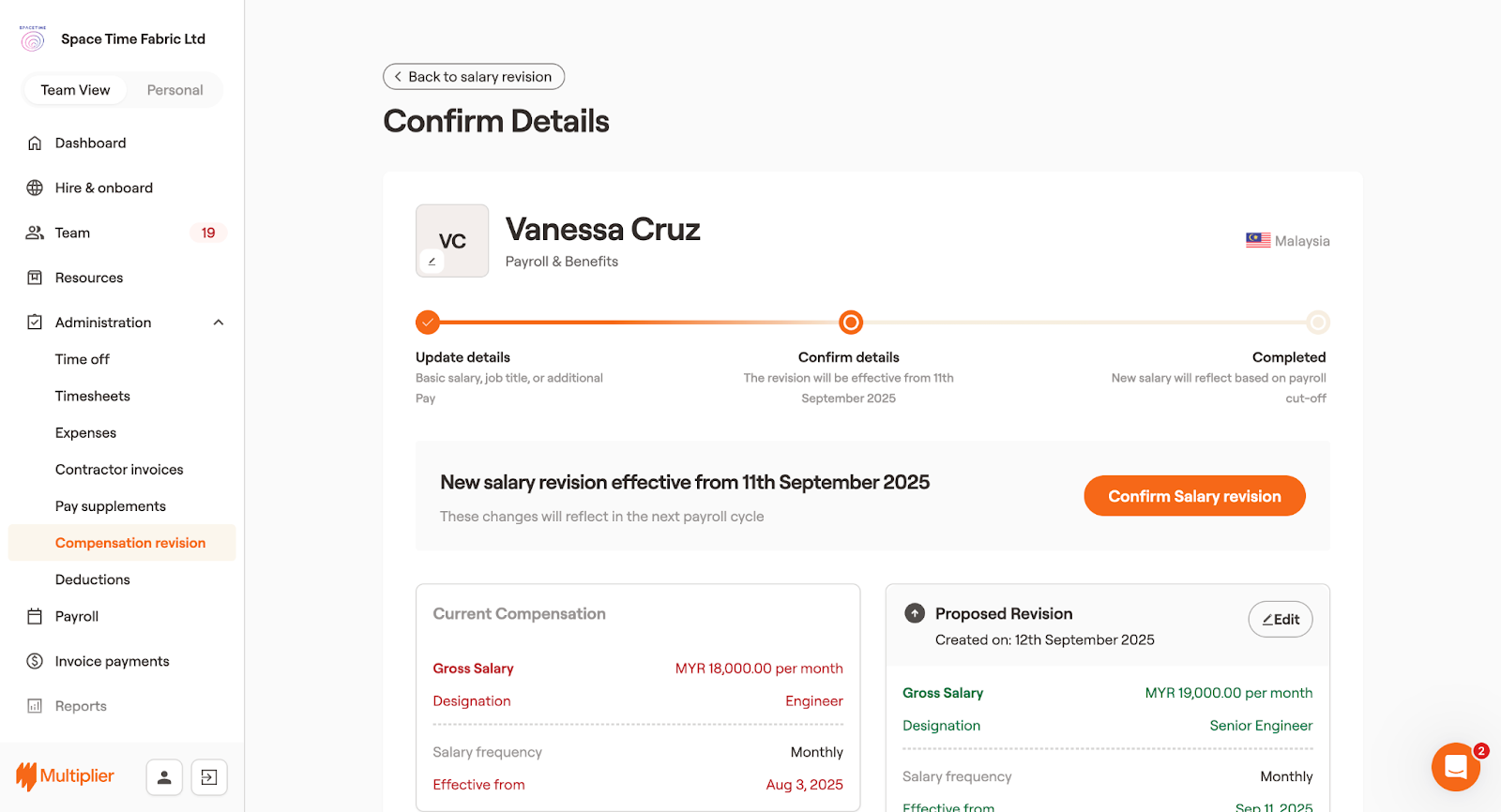
8. Review the details entered by you and select **Confirm Salary revision**.
9. Once you select **Confirm salary revision**, the salary revision and designation change are updated and will reflect from the effective date you selected.
 next to Compensation