# Complete pending onboarding of contractors
You may have paused the contractor onboarding process before sending contracts for signature or sending invitation emails to contractors to sign up on Multiplier. Multiplier allows you to resume the onboarding process exactly where you left off. Additionally, you have the option to send contracts in bulk. Learn how to resume paused onboarding or send contracts in bulk on Multiplier.
1. Log in to Multiplier using your credentials.
2. From the left sidebar, select Team.
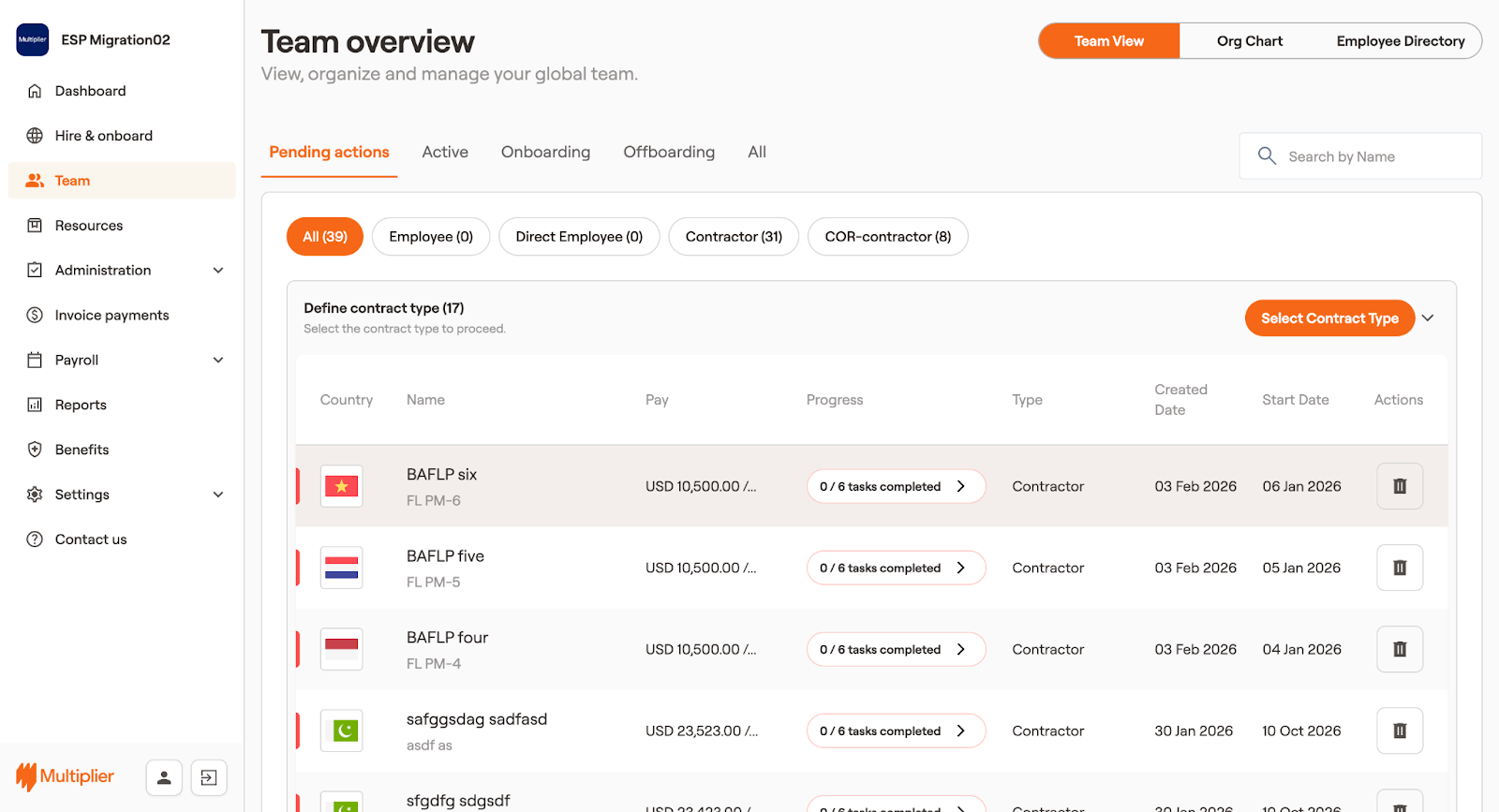
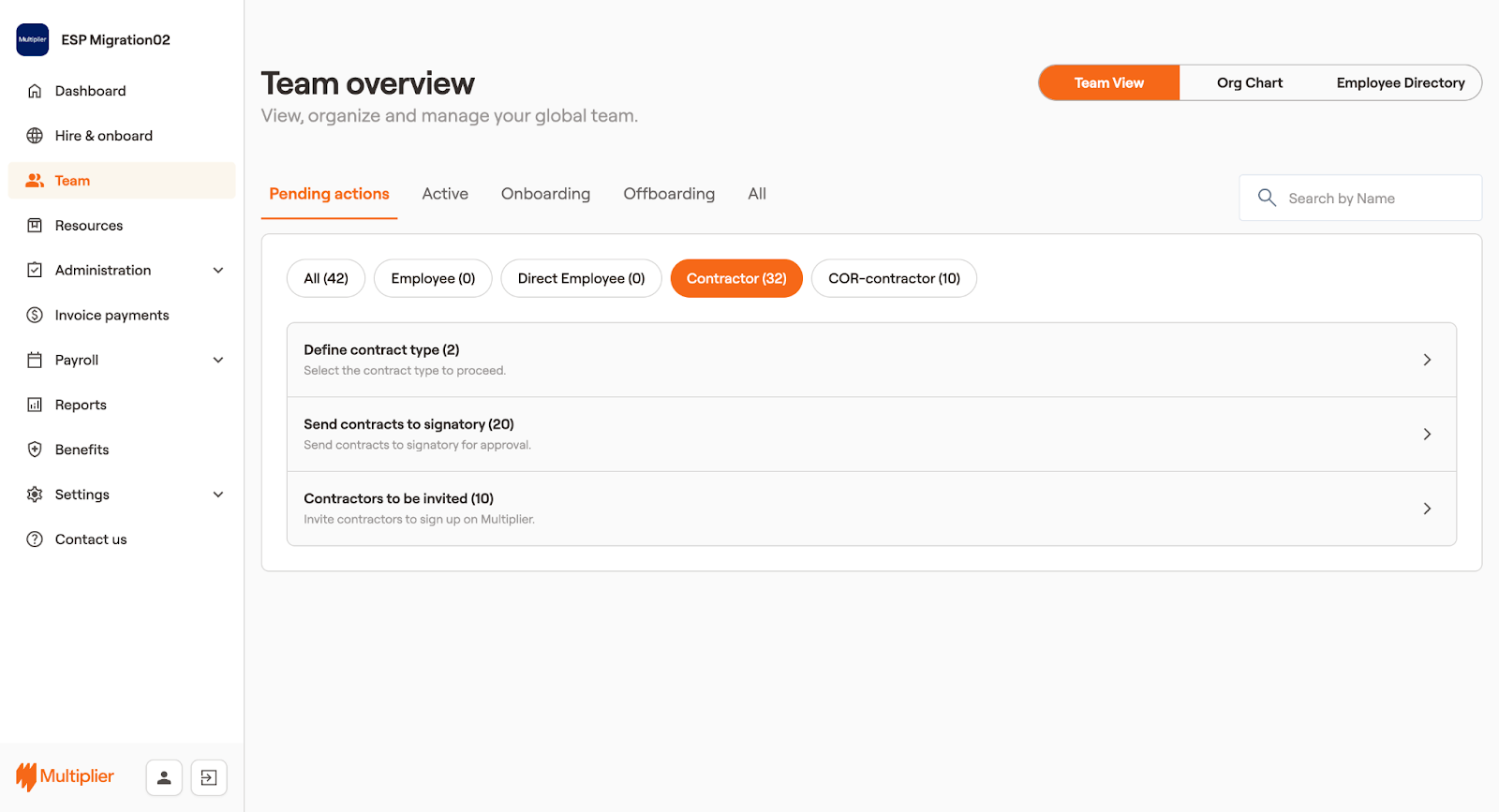
3. In the Team overview screen, select the **Pending actions** tab. Use the filter to select **Contractor**.
4. In the **Pending actions** tab, you can view various groupings in which the contracts of your contractors rest. You get three options. Learn more about these options and the way forward here:
Define Contract type
Before bulk actions can be performed on contracts, the user must select the contract template type. Select Define Contract type. Any contract for which the template selection is to be done falls under this grouping.
1. Click on **Select Contract Type**.
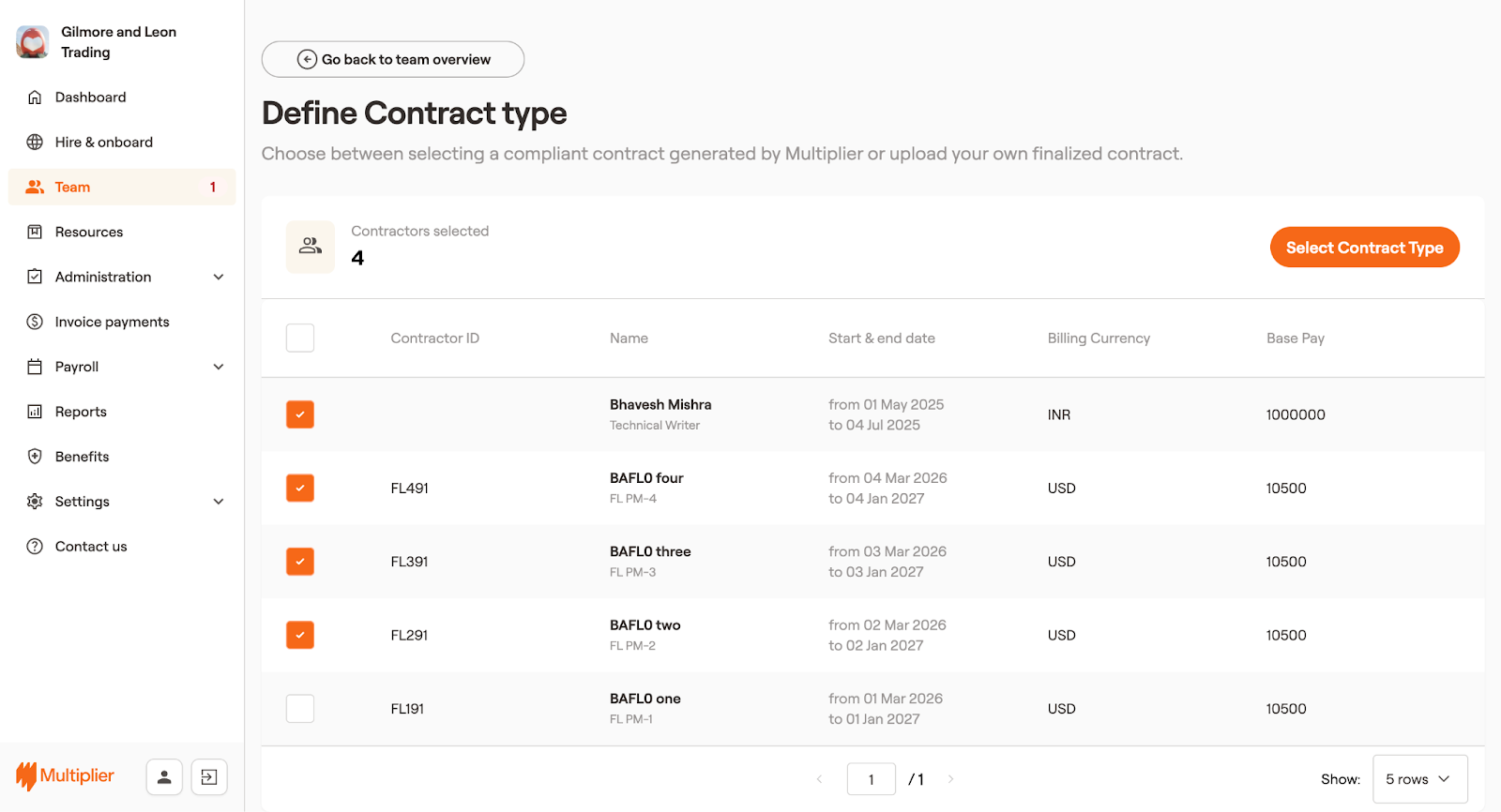
2. Select the contractors for whom you wish to select the contract type.
3. From the upper right, click on Select Contract Type.
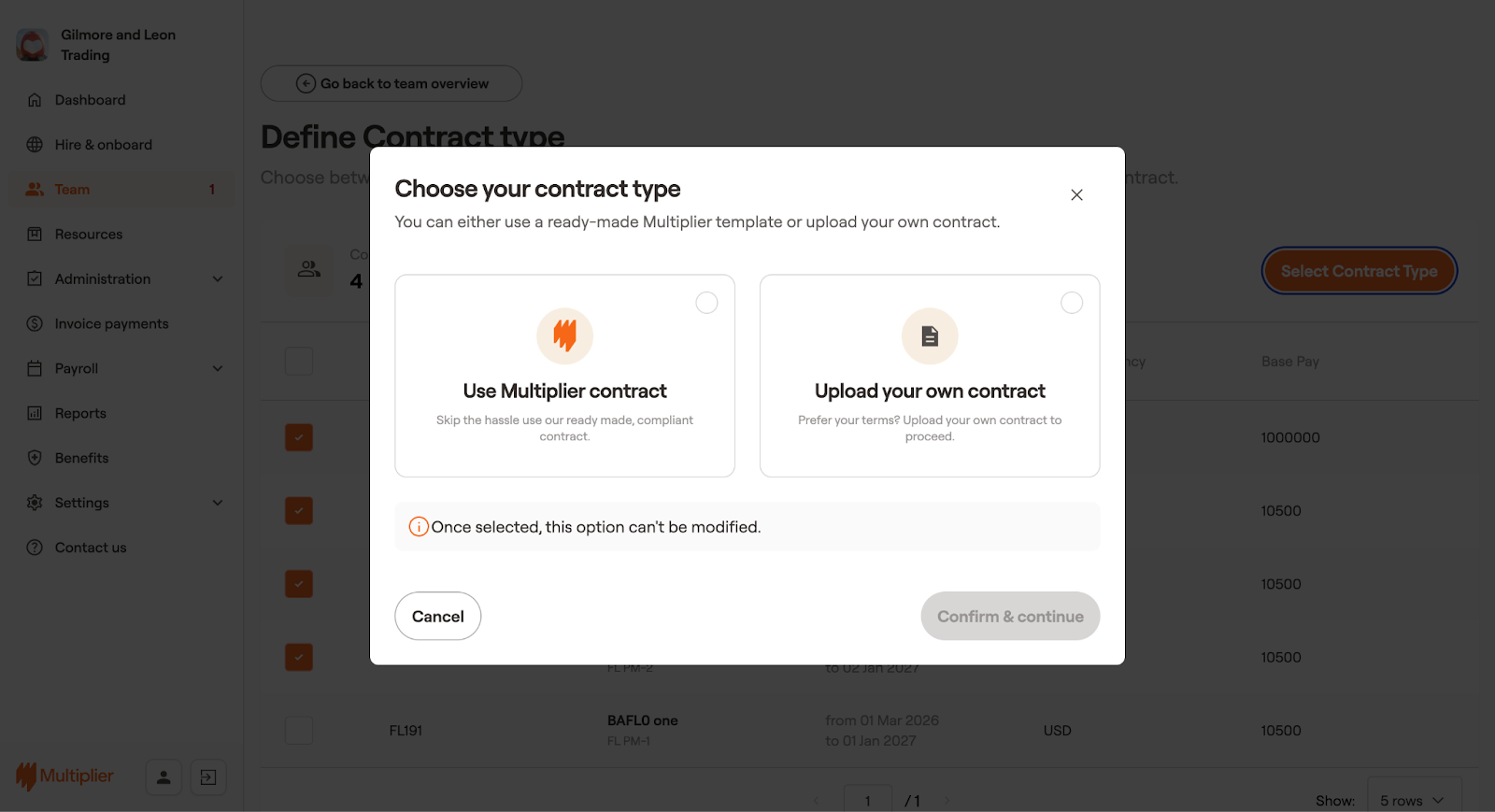
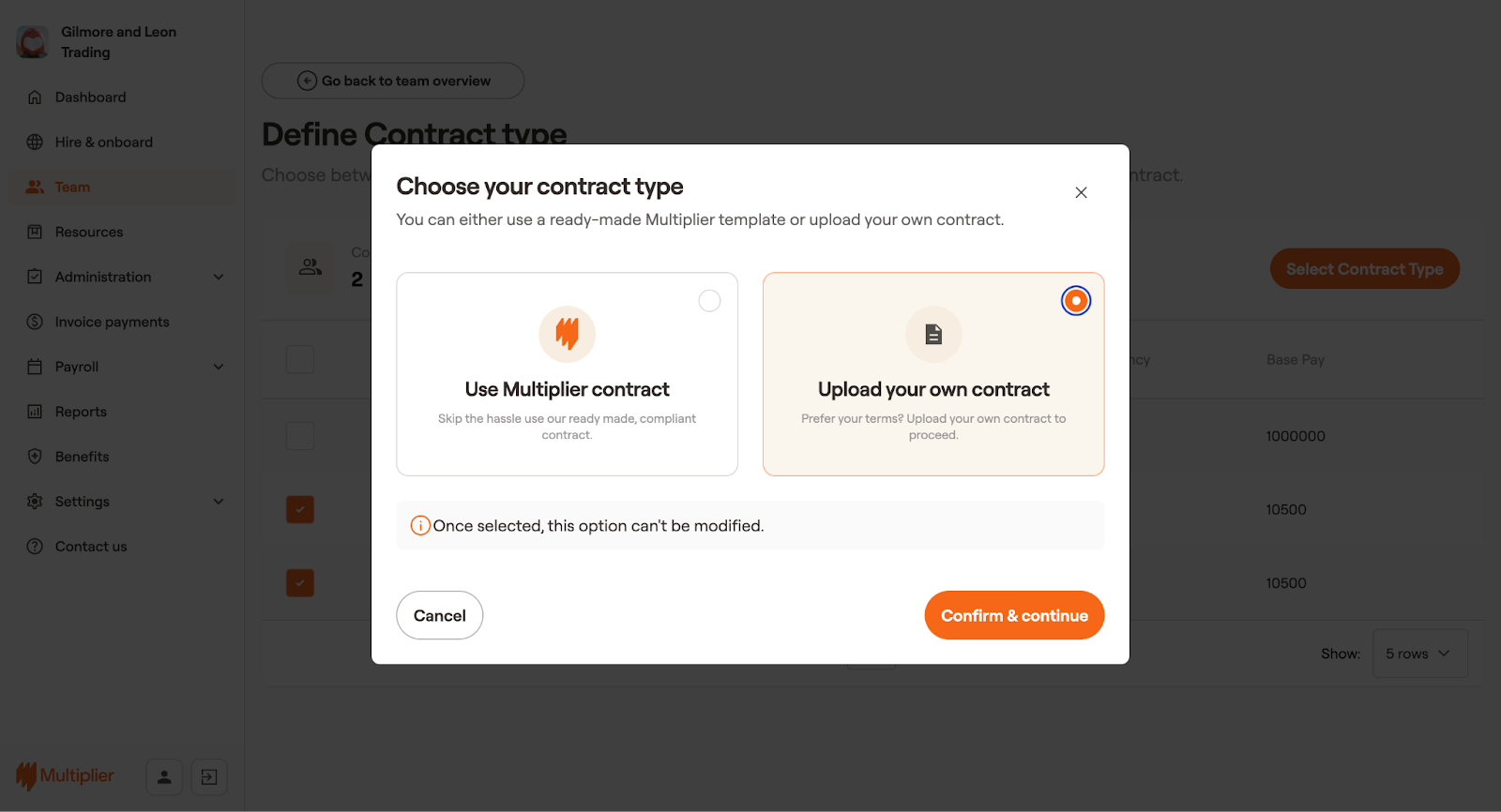
4. You get two options:
* **Use Multiplier Contract**: Select this option to proceed further. Once selected, it cannot be reverted.
1. Select **Confirm & continue**.
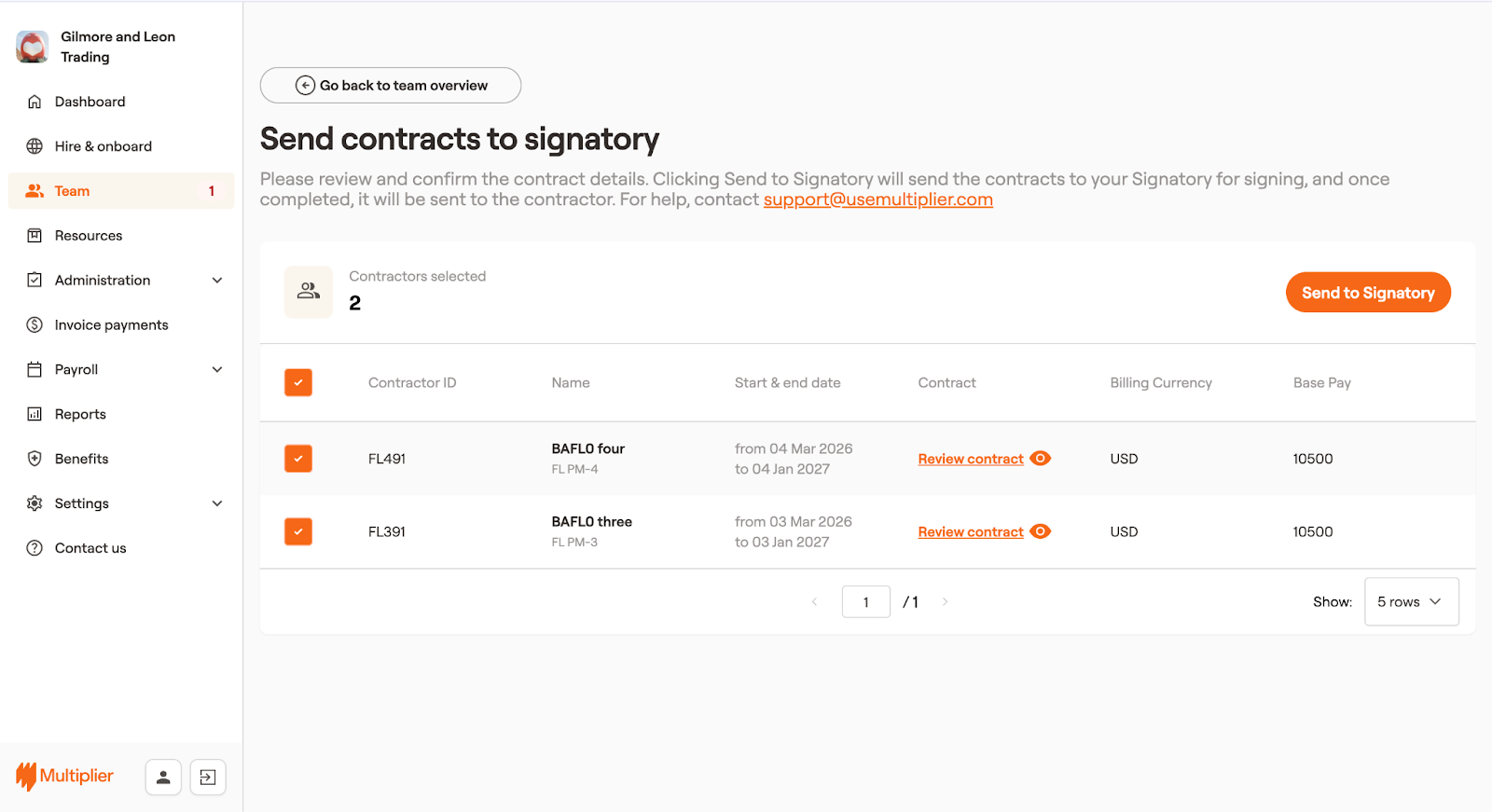
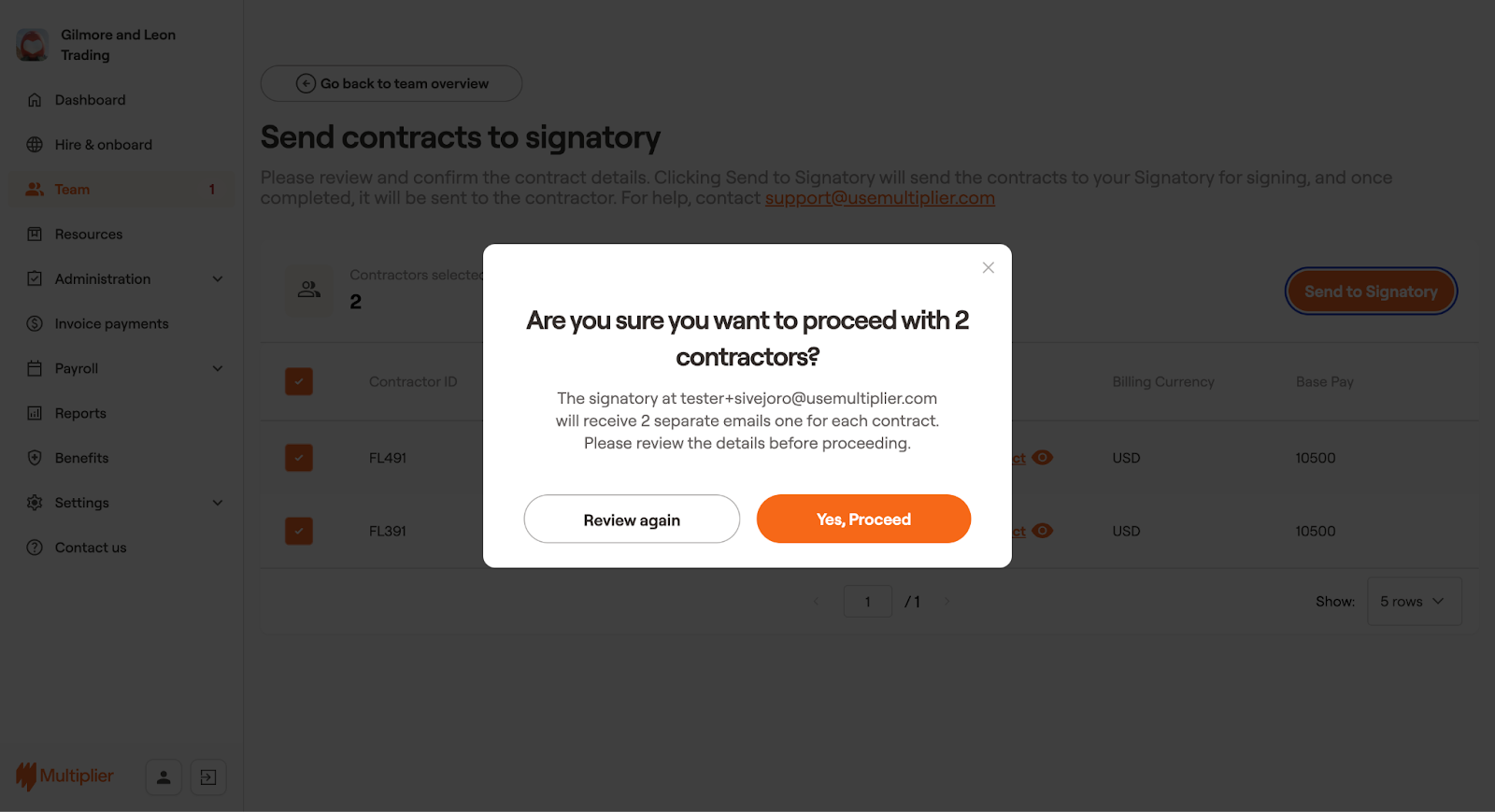
2. Select the contractors for whom you wish to send the contract to the company signatory for signing. Once the company signatory signs the contract, it will be sent to the contractor for their signature.
**Note:** If you don't want to use the Multiplier contract for all contractors, select only those for whom you do. For the rest, you can return to this section later and choose Upload your own contract.
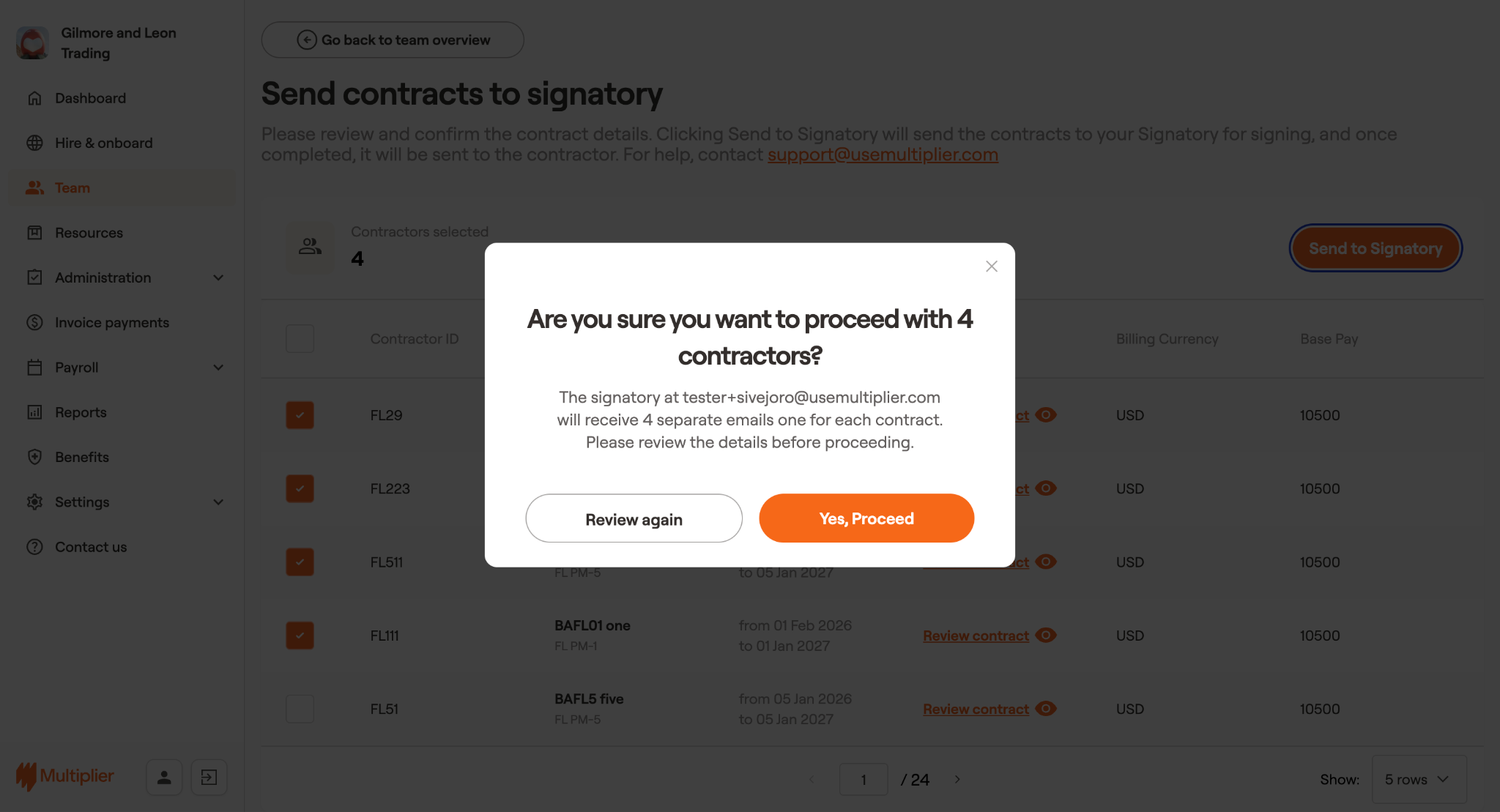
3. Select **Send to Signatory** from the upper right.
4. Select **Yes, Proceed**.
The contracts have been sent for signing to the company signatory. Once signed by the signatory, it'll be sent to the contractors for signing.
* **Upload your own contract** - Select this option
1. Select **Confirm & continue**.
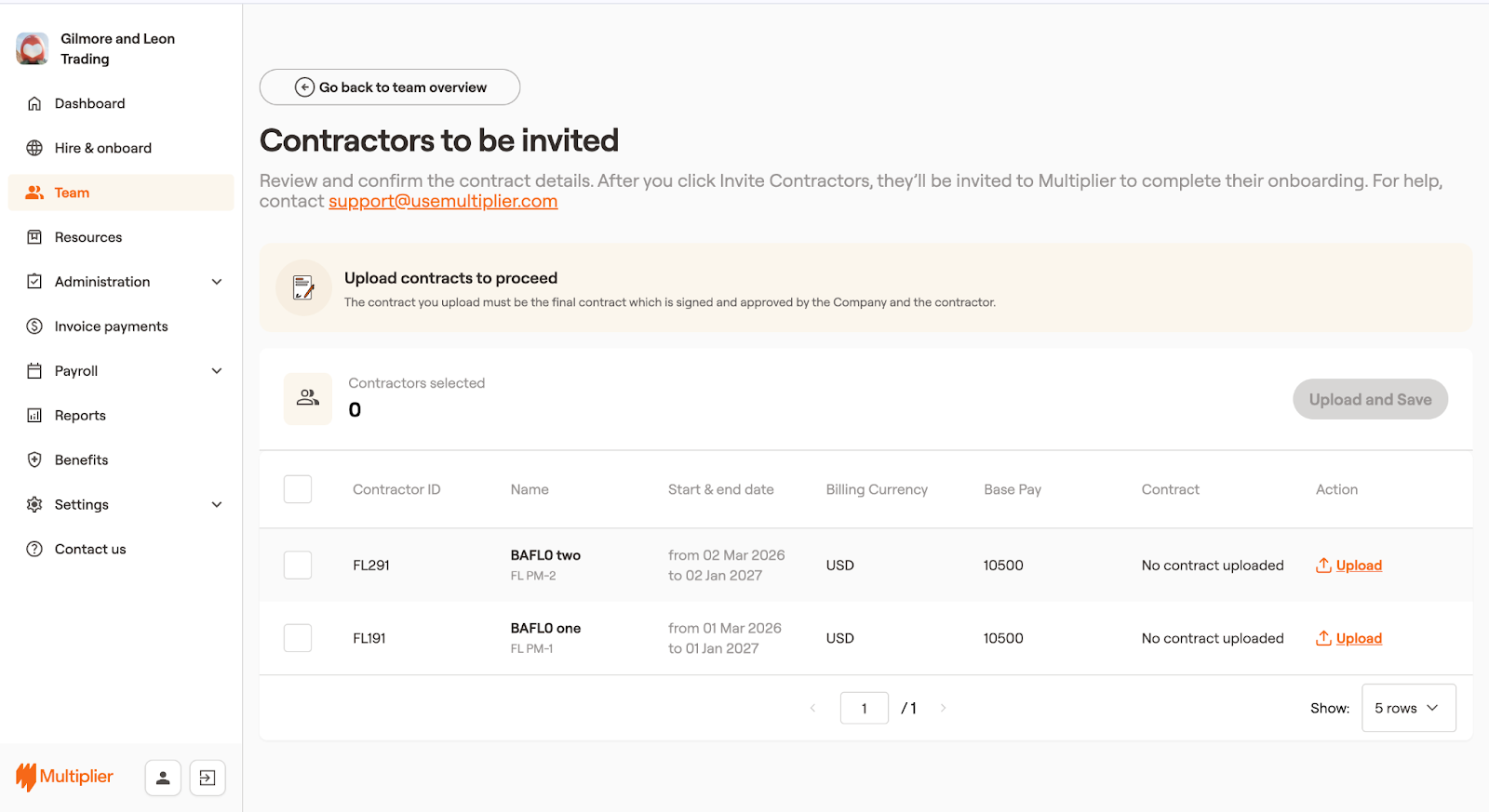
2. Select Upload next to the contractor for whom you wish to upload your contract template signed by all parties.
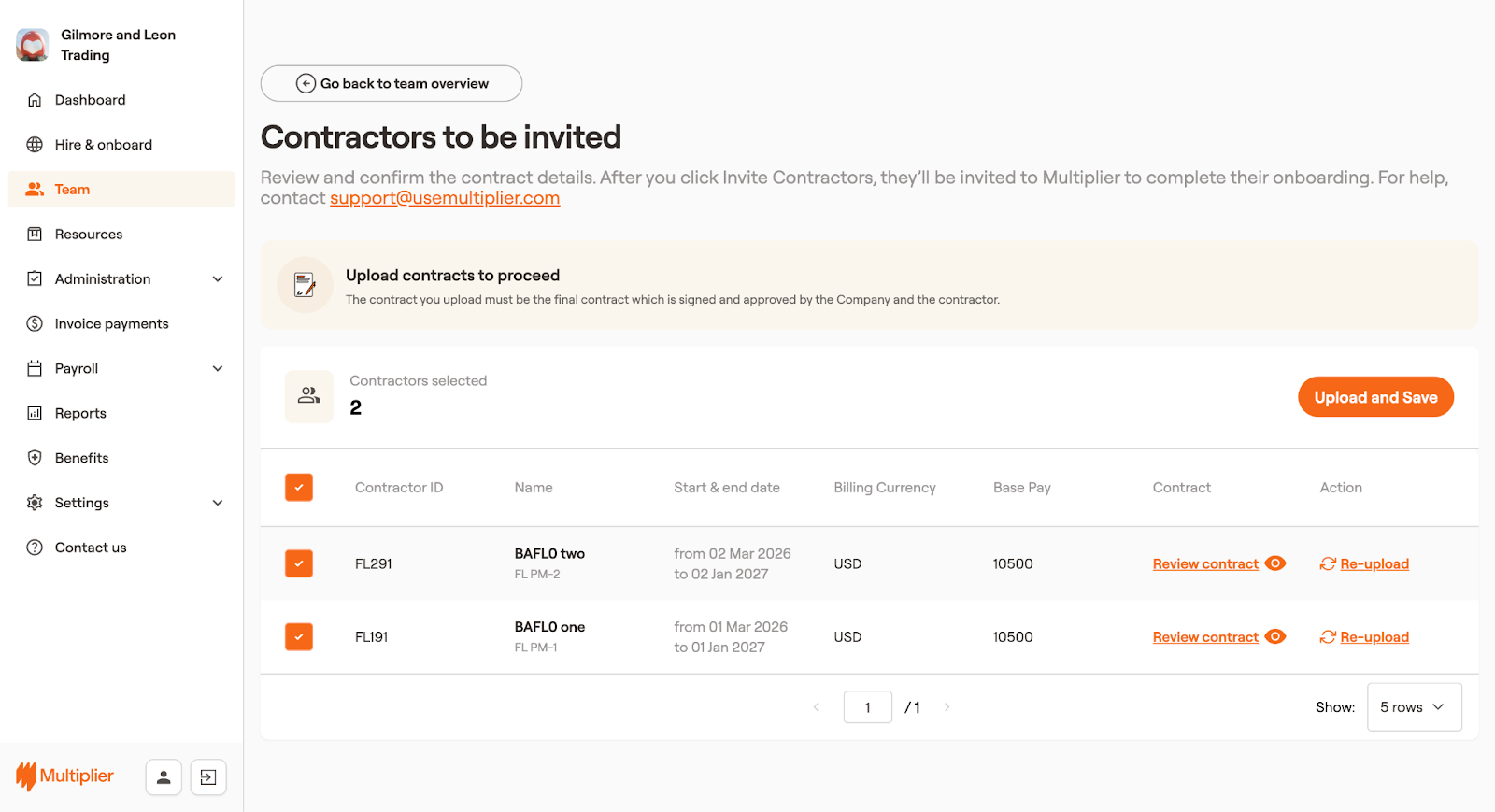
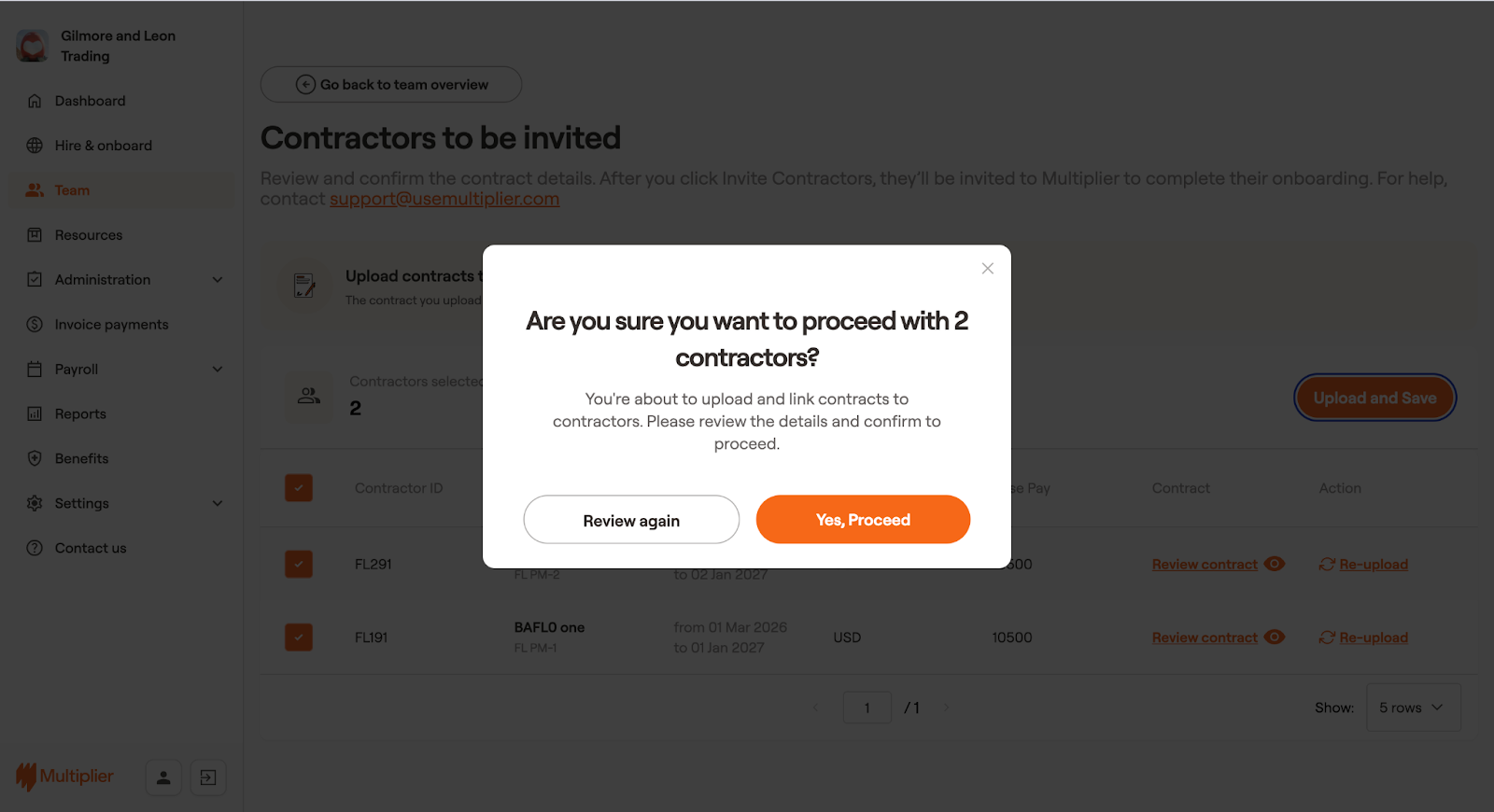
3. Once the contracts are uploaded, select the contractors for whom you wish to save the uploaded contract. Then select, **Upload and Save**.
4. Select **Yes, Proceed**.
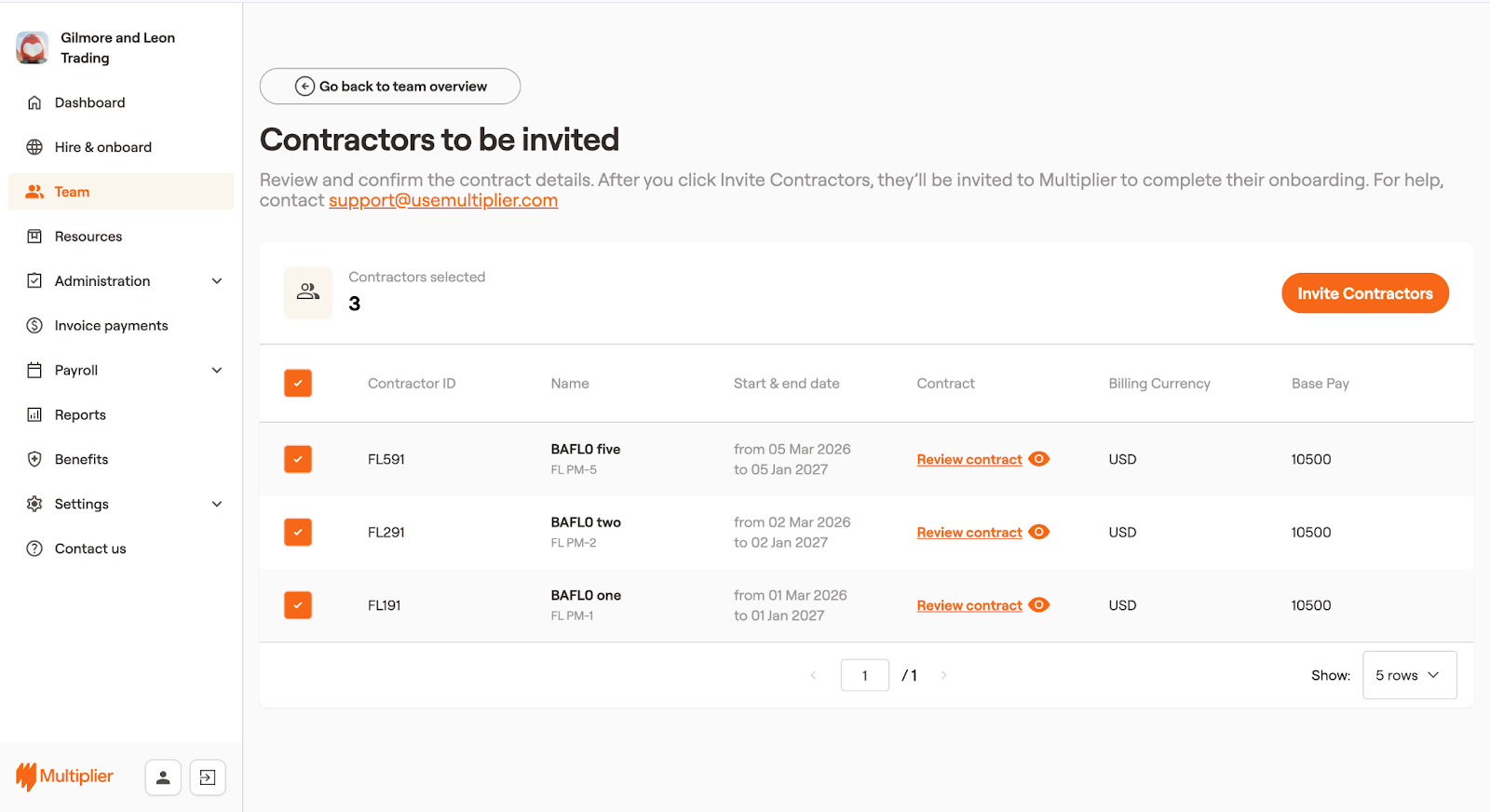
5. Select the contractors you want to invite to sign up on Multiplier. Then select Invite Contractors.
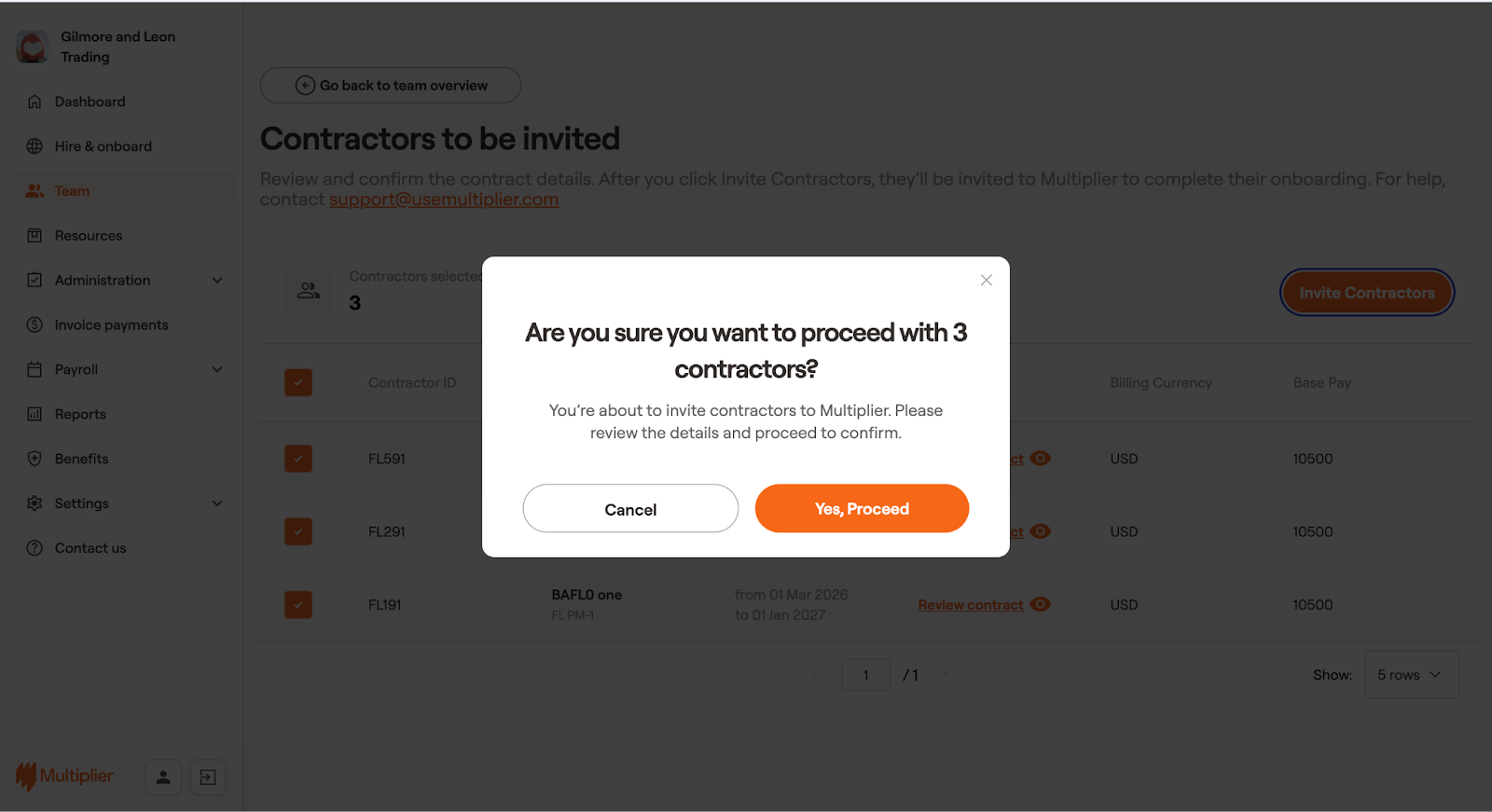
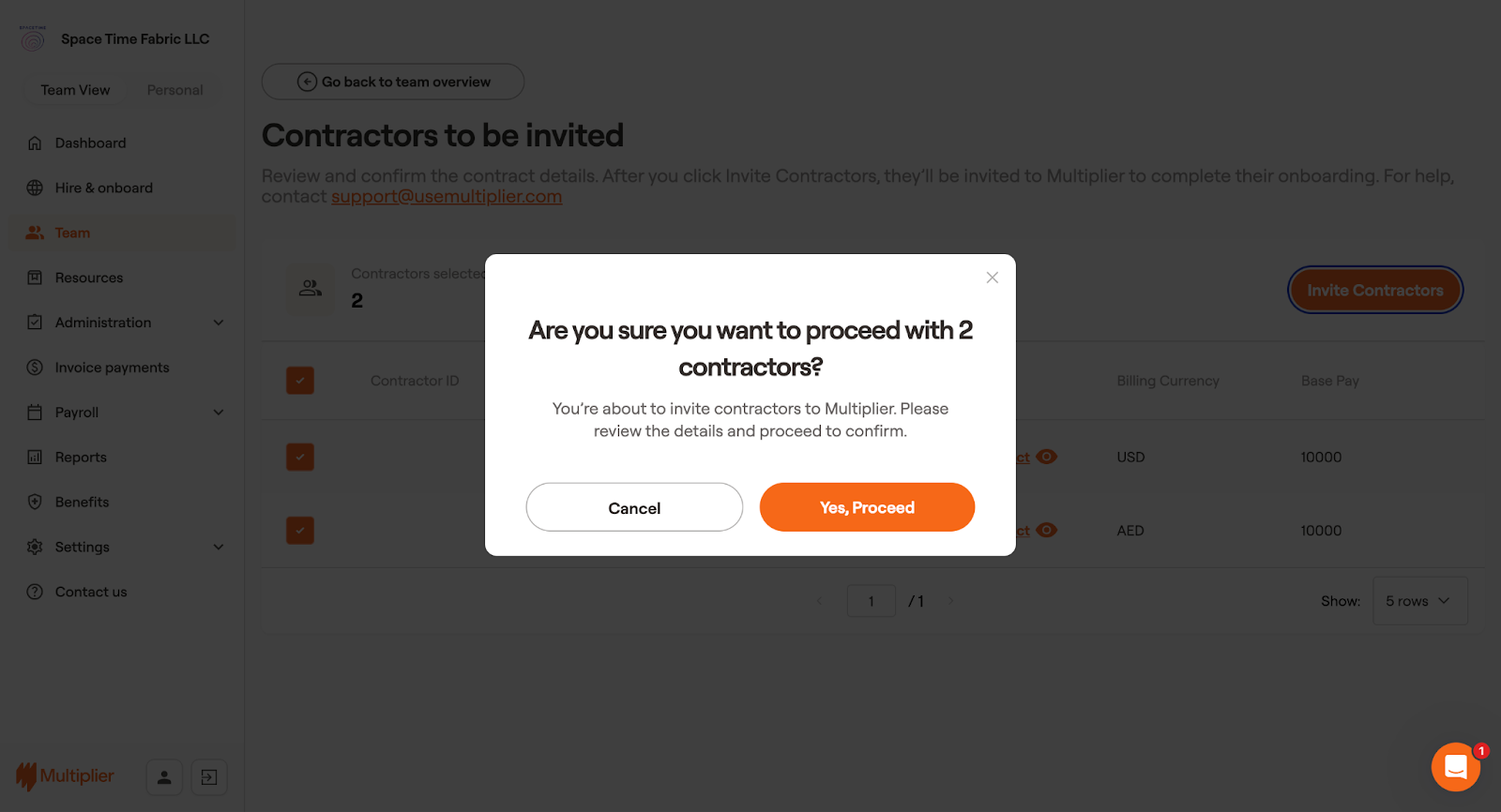
6. In the confirmation dialog box, select Yes, Proceed.
The contractors will receive an email inviting them to sign up on Multiplier's platform
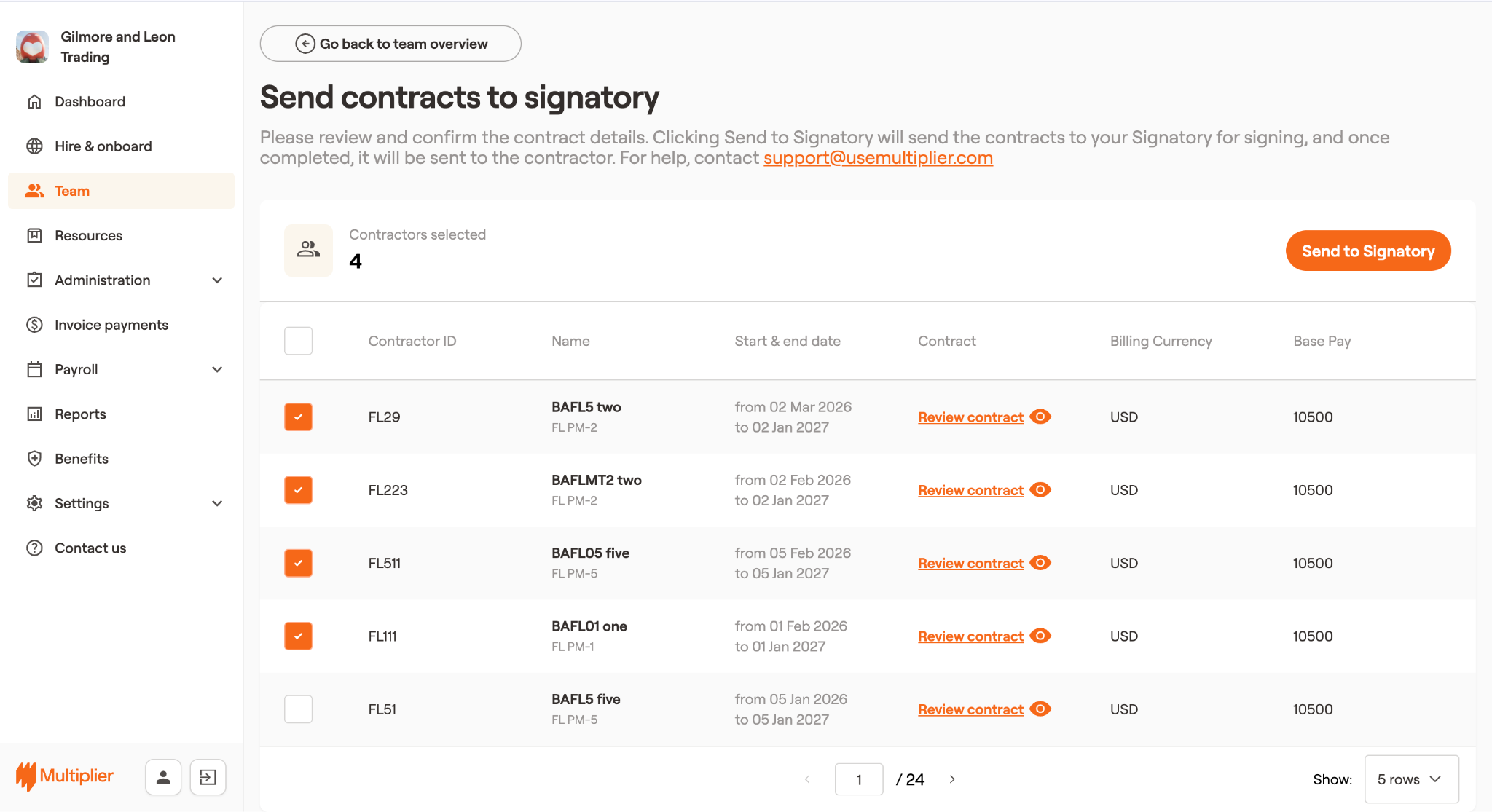
Send contracts to Signatory
This section has the list of contractors whose contracts are ready and waiting to be sent for signing.
1. Select Send to Signatory.
2. In the Send contracts to signatory screen, select the contractors to whom you want to send the contract for signing. Once done, select Send to Signatory from the upper right.
3. In the dialog box that appears, select Yes, Proceed.
The contract has been sent for signature. Once the contract is signed by the company signatory, it will be sent to the contractor for signing.
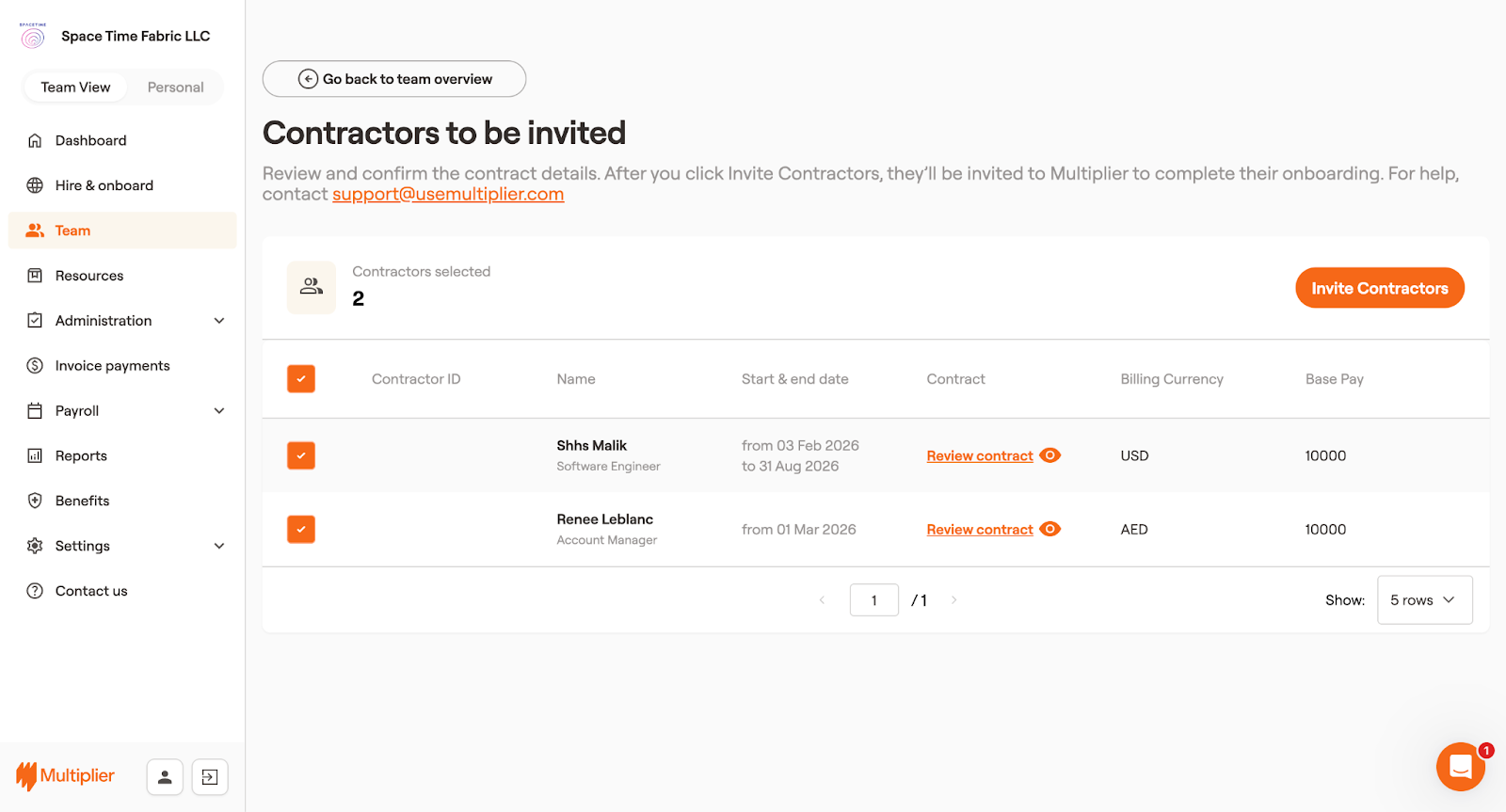
Contractors to be invited
The contractors in this grouping are the ones whose contract type has been finalised, but the admin might have dropped off after uploading and saving contracts signed by both parties. The final task of sending the invite to contractors to sign up on Multiplier is pending. To resume the process:\
\
1\. Select the grouping and then select Invite Contractor.
2\. Select the contractors you want to invite to sign up on Multiplier and then select Invite Contractors.
3\. In the dialog box that appears, select **Yes, Proceed**.
The selected contractors will receive an email at their registered email address to sign up on Multiplier.
Learn about the **Onboarding** tab in the Team section.
Other pending onboarding - Admins can use this grouping to track milestones involved in onboarding a member on Multiplier and related actions pending on either the admin or the member.
In the onboarding tab, you can complete the pending onboarding process of Contractors. In both these dropdowns, you see a list of contractors whose onboarding is pending. The section also displays the number of steps completed in the onboarding process. The remaining steps can be either pending on the contractor or the admin. Select the contractor to resume the onboarding process.